SharePoint DLP: The Complete Guide to Detect & Remediate Sensitive Data (2026)
SharePoint Online DLP policies decide who can share a file. Strac decides what leaves it, redacting sensitive data across SharePoint, Copilot, and every app.
SharePoint Online DLP finds sensitive data such as PII, PHI, cardholder data, and intellectual property in SharePoint sites and libraries, then warns, restricts, or blocks the actions that would expose it.
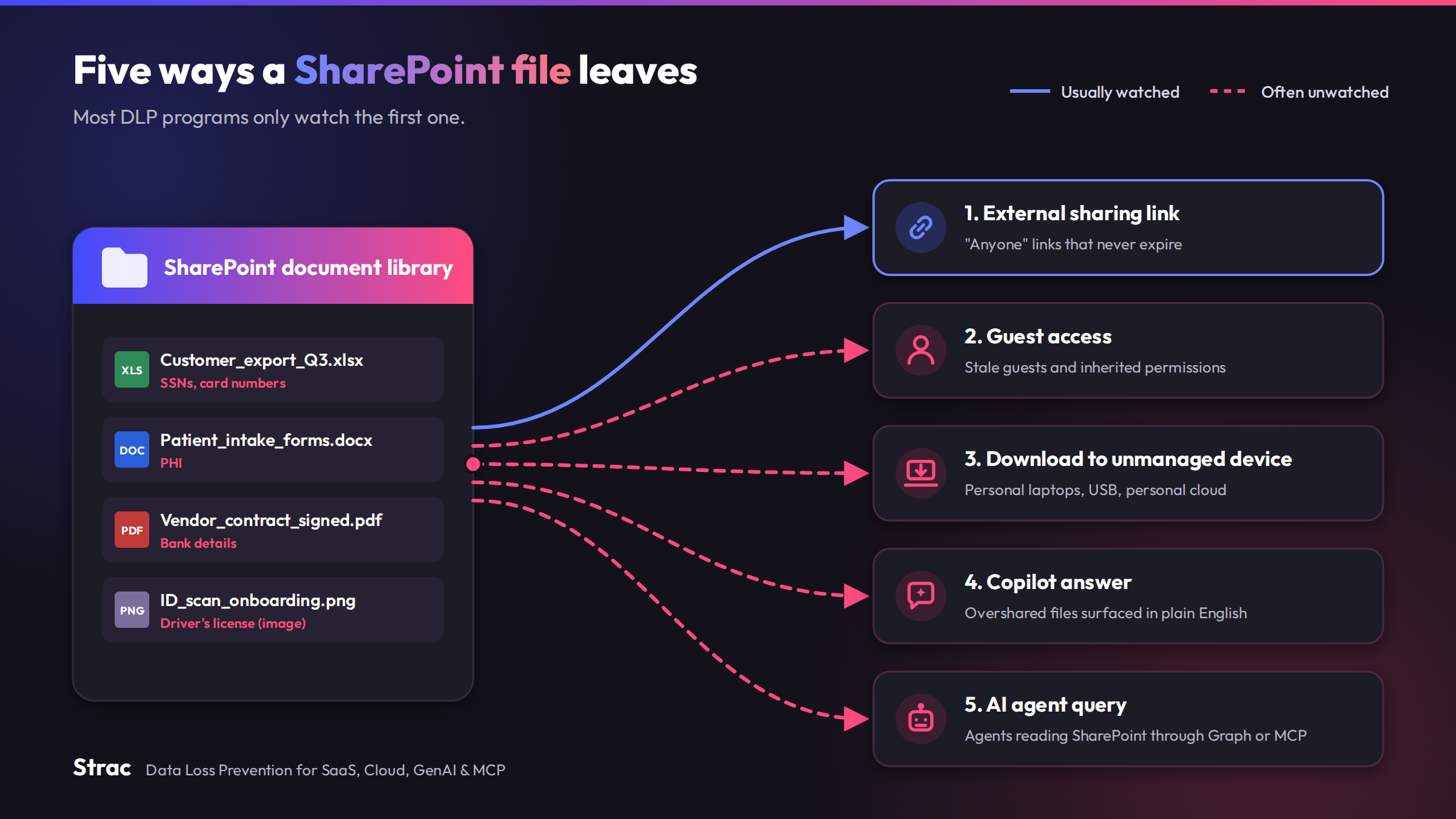
The risk changed in 2026. Copilot and AI agents now read everything a user can reach, so an overshared SharePoint library is no longer a latent problem; it is an answer waiting to be generated.
Native Microsoft Purview policies govern permissions, sharing, and labels inside Microsoft 365. They do not redact the data itself, and they stop at the tenant boundary.
Strac scans every SharePoint file, redacts the sensitive fields in place, revokes risky links, and applies the same policy across SaaS apps, the browser, the endpoint, GenAI tools, and MCP agents.
SharePoint Online DLP is any control that detects sensitive content stored in SharePoint and acts on it before it leaves the people who should see it. Natively, that means Microsoft Purview DLP policies scoped to SharePoint sites, working alongside sensitivity labels, sharing settings, and site permissions.
SharePoint is where Microsoft 365 keeps its documents. Teams files live in it, OneDrive shares the same engine, and Copilot grounds its answers in it. A policy that protects SharePoint therefore protects much more than one app, and a gap in SharePoint shows up everywhere Microsoft 365 reaches.
The distinction worth holding on to is simple. A permission decides who can open a file. DLP decides what may happen to the data inside it. For the broader picture, including where the native model stops, read SharePoint data security.
What Is SharePoint Online DLP?
SharePoint Online DLP is any control that detects sensitive content stored in SharePoint and acts on it before it leaves the people who should see it. Natively, that means Microsoft Purview DLP policies scoped to SharePoint sites, working alongside sensitivity labels, sharing settings, and site permissions.
SharePoint is where Microsoft 365 keeps its documents. Teams files live in it, OneDrive shares the same engine, and Copilot grounds its answers in it. A policy that protects SharePoint therefore protects much more than one app, and a gap in SharePoint shows up everywhere Microsoft 365 reaches.
The distinction worth holding on to is simple. A permission decides who can open a file. DLP decides what may happen to the data inside it. For the broader picture, including where the native model stops, read SharePoint data security.
Why SharePoint Became a Harder DLP Problem
Three shifts turned SharePoint from a document store into an exposure surface.
The first is sprawl. Every Team creates a site, every project creates a library, and permissions are inherited, broken, and re-granted until nobody can say who has access to what. The second is sharing by link. "Anyone" and "People in your organization" links are convenient and rarely expire, so a file shared once for a quarterly review stays reachable for years.
The third is AI. Microsoft 365 Copilot respects permissions, which sounds reassuring until you remember that the permissions were never cleaned up. Copilot does not create oversharing; it makes oversharing searchable in plain English. The same is true of any AI agent connected to SharePoint through Microsoft Graph or an MCP server, covered in depth in Microsoft Copilot security.
How to Build a SharePoint Online DLP Policy in Microsoft Purview
Native controls are worth configuring well before anything else is added. In the Microsoft Purview portal, open Data loss prevention, then Policies, and create a policy. The steps below follow the order the wizard uses.
Choose the template or start custom. Regulatory templates for HIPAA, PCI DSS, GDPR, and US financial data give you a working set of sensitive information types. A custom policy lets you add your own types, such as customer IDs, contract numbers, or project code names.
Scope the locations. Select SharePoint sites and apply the policy to all sites or to named ones. Start with the libraries that hold regulated data: finance, HR, legal, and customer success. Add OneDrive accounts and Teams chat and channel messages when the same data travels there.
Define the conditions. Combine sensitive information types, trainable classifiers, and sensitivity labels with a minimum instance count and a confidence level. "Ten or more card numbers at high confidence" behaves very differently from "any card number."
Set the actions. Restrict access for people outside the organization, block external sharing, or block everyone except the owner and last modifier. Scope the Microsoft 365 Copilot location so labeled content is excluded from Copilot processing.
Write the policy tips and alerts. A policy tip explains to the user, in the document itself, why the action was flagged. Alerts route matches to the security team with the severity and the volume threshold you choose.
Run it in simulation mode first. Simulation shows what the policy would have matched without enforcing anything. Review the matches, tune the conditions, then turn on enforcement.
Classify before you enforce. Apply sensitivity labels to the libraries that matter and use them as policy conditions. A labeled file carries its classification into Copilot, email, and downloads.
Limit sharing at the site level. Set external sharing on sensitive sites to existing guests only, set default links to specific people, and put an expiry on "Anyone" links where you keep them at all.
Clean up before Copilot rollout. Review sites with broken inheritance, "Everyone except external users" grants, and stale guest accounts. Restricted Content Discovery keeps named sites out of Copilot and organization-wide search while you fix them.
Watch the overrides. Every override with a business justification is a signal. A rule that is overridden weekly is either wrong or describing a real workflow you need to support.
Review Activity explorer and the DLP alerts queue. Filter for policy matches, overrides, and file egress by site. Trends tell you where to tighten; false positives tell you where to loosen.
Train the people behind the policy tips. A user who understands why a share was restricted finds the approved path. A user who does not finds a personal account.
What Native SharePoint DLP Cannot Do
Purview policies are good at permission decisions inside Microsoft 365. The limits are structural, not configuration mistakes, and they are covered in detail in Office 365 DLP limitations.
Native DLP restricts the file; it does not remove the data. A spreadsheet with one column of Social Security numbers is either blocked in full or shared in full. There is no option to share the file with the sensitive column masked.
Coverage stops at the tenant. The same customer export can be downloaded, pasted into ChatGPT, dropped in Slack, or uploaded to a personal Google Drive, and each of those needs its own tool and its own policy language.
Image content is inconsistent. A screenshot of a card number, a scanned ID, or a photographed contract in a library needs OCR, and coverage depends on licensing and location.
Enforcement depends on the right license tier across every user. Mixed licensing produces mixed protection, and the gaps are rarely where you expect.
Blocking tells you a file cannot leave. Redaction lets it leave safely. The first stops collaboration; the second keeps it going without the regulated fields.
✨ Detect, Remediate Risky Access, and Alert
Finding sensitive data is only half the job. The bigger SharePoint risk is who can reach it: a document shared with "Anyone with the link," a site opened to external guests, an OneDrive folder inherited from a departed employee. Native SharePoint tells you a file was shared; it does not fix the exposure. Strac does.
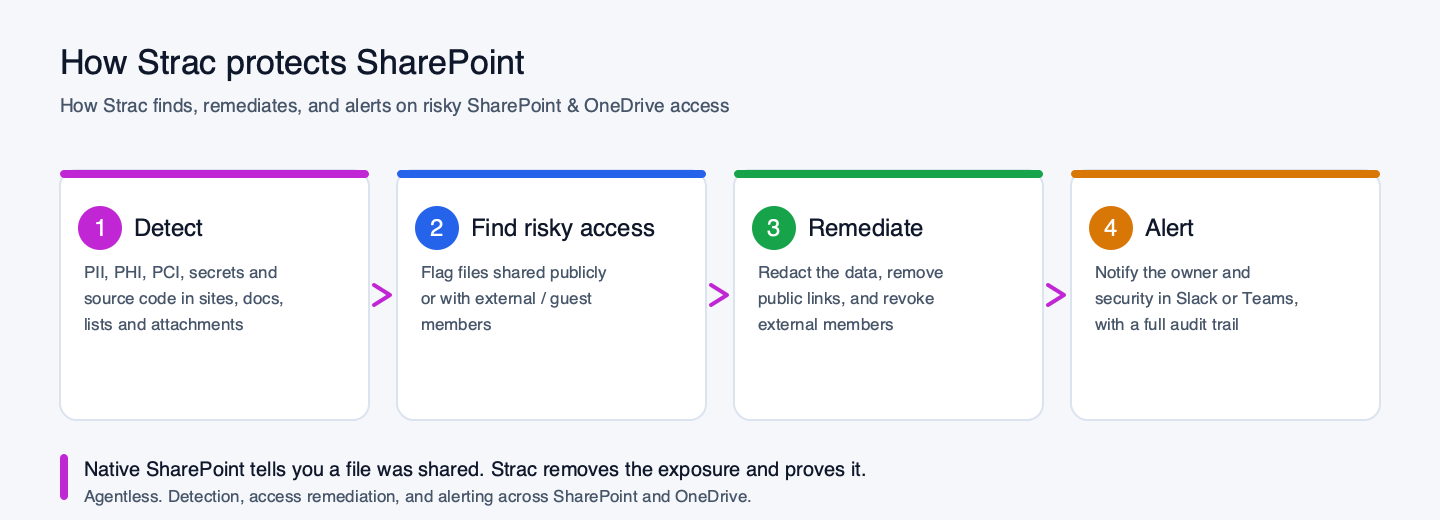
Strac detects sensitive data, finds public and external sharing, remediates the access, and alerts in Slack or Teams
Strac runs four jobs across SharePoint and OneDrive:
Detect PII, PHI, PCI, secrets, and source code inside files, lists, pages, and attachments, including images and scans via OCR.
Find risky access by flagging files shared with public "Anyone" links or with external / guest members.
Remediate automatically: redact the sensitive data in the file, remove the public link, and revoke the external member, so the exposure is actually closed.
Alert the file owner and your security team in Slack or Teams, with a full audit trail for compliance.
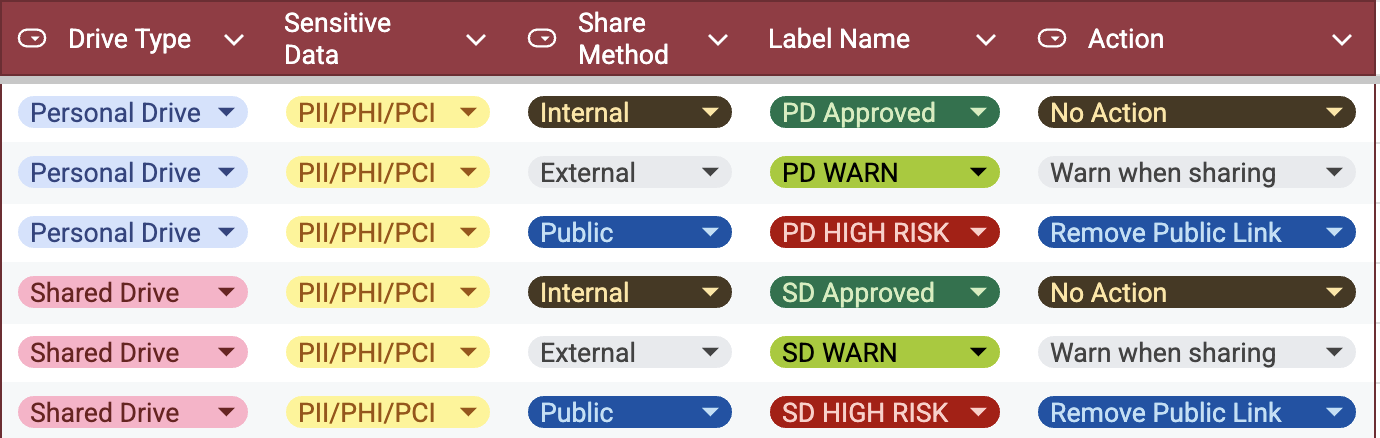
Strac SharePoint DLP: data classification, labeling, and remediation policy in the console
What Strac does on SharePoint and OneDrive
How it works
Example
Detect
Scans files, lists, pages, and attachments for PII, PHI, PCI, secrets, and source code, including images and scans via OCR.
A spreadsheet of SSNs sitting in a team site is found.
Classify and label
Labels each file by the sensitive data it actually contains, so Purview policies and Copilot exclusions work from accurate classification.
A contract is auto-labeled Confidential, PII.
Find risky access
Flags files shared with public “Anyone with the link” or with external and guest members.
A folder opened to anyone with the link is surfaced.
Remediate access
Automatically redacts the sensitive data, removes the public link, and revokes external and guest members.
The public link is pulled and the external guest removed.
Alert and audit
Notifies the owner in Slack or Teams and keeps an audit trail of every finding and fix.
A Slack alert fires the moment a public SSN file appears.
Govern the AI path
Covers SharePoint-grounded Copilot and MCP tool calls so agents never surface raw sensitive data.
A Copilot answer returns with the SSN redacted.
What Strac enforces across SharePoint Online and OneDrive, from detection through automatic access remediation and the Copilot and MCP path.
✨ How Strac Finds and Redacts Sensitive Data in SharePoint
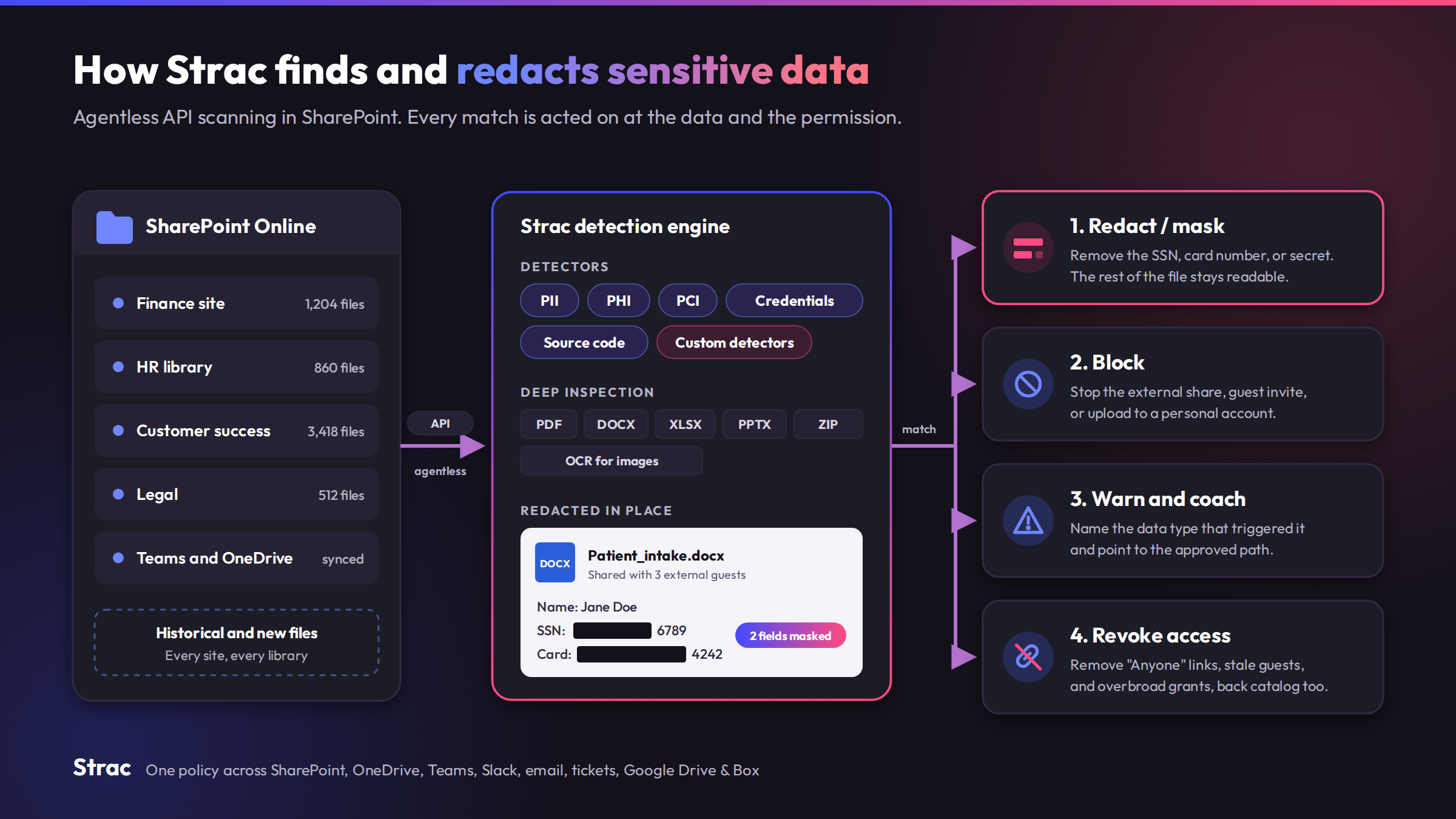
Strac connects to SharePoint through the SharePoint DLP integration with API-based, agentless access. It scans every site and library, historical and new, using detectors from the catalog of sensitive data elements for PII, PHI, PCI, credentials, and source code. OCR reads images, and deep inspection covers PDF, DOCX, XLSX, PPTX, and ZIP contents.
When a file matches a policy, Strac acts on the data and the permission together:
Redact / mask: remove the SSN, card number, or secret from the document in SharePoint, OneDrive, Teams, Slack, email, tickets, Google Drive, and Box, and leave the rest readable.
Block: stop the external share, the guest invite, or the upload to a personal account when the data type is not permitted to leave.
Warn and coach: tell the user which data type triggered the policy and point to the approved path at the moment of sharing.
Revoke access: remove "Anyone" links, stale guests, and overbroad internal grants across the back catalog, not only the file in front of you.
Close the Local Path Into SharePoint
The controls above govern data already in SharePoint. Strac’s endpoint agent closes the two paths a file travels between a laptop and SharePoint, before it ever lands:
Browser upload. Stops a sensitive file being uploaded to SharePoint through a browser tab, using the same detectors that run in the cloud.
Cloud sync. Stops a sensitive file being copied into the OneDrive sync folder on the device, so it never syncs up to SharePoint in the first place (macOS today).
Paired with the SaaS controls, sensitive data is governed on the way in, at rest, and on the way out. See endpoint DLP for the full 13-channel enforcement model.
✨ Strac: One Data Layer Across SharePoint, Copilot, Endpoint & AI
A SharePoint-only control is a SharePoint-shaped hole. The same file leaves through several other doors, and Strac covers each with the same detectors and one policy.
DSPM, the exposure you inherited. A map of where sensitive data sits across SharePoint, OneDrive, and every connected app, ranked by who can reach it, with public exposure removed at the source.
Data classification labels, the context Copilot needs. Strac labels files by the sensitive data they actually contain, so Purview policies, Copilot exclusions, and access reviews work from accurate classification.
Copilot DLP, the answer generated. Strac inspects prompts and responses and redacts sensitive fields before a SharePoint-grounded answer reaches the user. See Copilot data privacy for what Copilot sees and keeps.
SaaS DLP, the file forwarded. The same policy follows the data into Microsoft Teams, Outlook, Slack, Google Workspace, Salesforce, and Zendesk.
Endpoint DLP, the file downloaded. One agent for Windows, macOS, and Linux governs the clipboard, personal uploads, printing, and USB after a file leaves SharePoint.
Data lineage, the file renamed. A lasting fingerprint on files synced from SharePoint and OneDrive, so a renamed or edited copy is still recognized on its way out.
AI DLP, the file pasted into a prompt. A browser extension redacts sensitive fields before a SharePoint export reaches ChatGPT, Claude, Gemini, or Copilot on the web, the most common path for shadow AI.
MCP DLP, the file read by an agent. Strac redacts sensitive data in MCP tool responses, so an agent connected to SharePoint returns masked fields instead of raw records.
Every surface above maps to evidence for HIPAA, PCI DSS, SOC 2, ISO 27001, GDPR, and CCPA, and most teams see live scanning within minutes of connecting SharePoint.
✨ SharePoint, Copilot & MCP: Protecting the AI Path
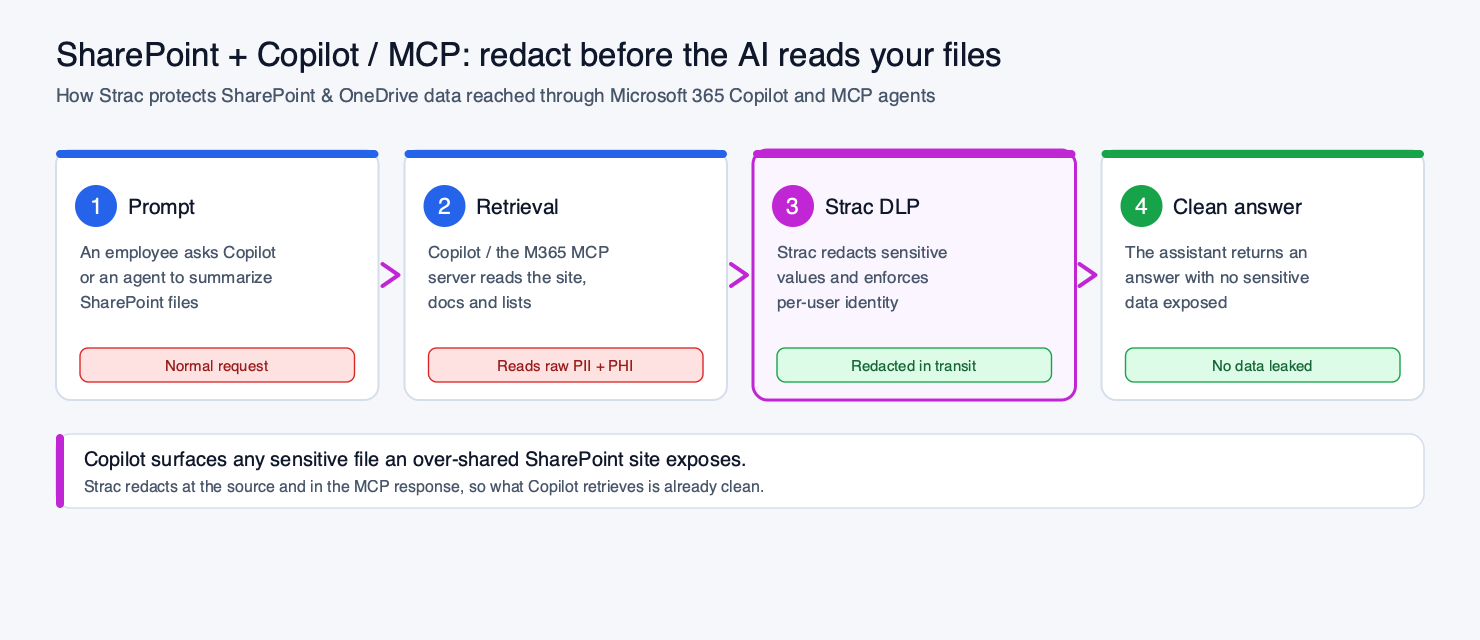
Microsoft 365 Copilot reads across SharePoint and OneDrive to answer prompts, and AI agents now reach the same data through the Microsoft 365 MCP server and the SharePoint MCP server. Any sensitive file sitting in an over-shared site is now instantly retrievable by an assistant.
Strac redacts SharePoint and OneDrive data before Copilot or an MCP agent returns it
Strac closes both the human path and the AI path: it redacts sensitive data at the source, and inspects the Copilot / MCP retrieval so what the assistant returns is already clean, with per-user identity enforced. See MCP DLP and AI DLP.
Native SharePoint DLP vs Strac
Capability
Native SharePoint / Purview
Strac
Detect PII/PHI/PCI in files & lists (OCR)
Partial
Yes
Find public links & external/guest sharing
Partial
Yes
Remove public access automatically
No
Yes
Revoke external / guest members
No
Yes
Redact sensitive data inside a file
No
Yes
Alert owner + security in Slack / Teams
No
Yes
Protect Copilot & MCP-agent retrieval
No
Yes
Licensing
E5 for full DLP
Any tier, agentless
A 90-Day SharePoint Online DLP Program
Days 0 to 30, discover: connect SharePoint and OneDrive read-only, classify every file, and list "Anyone" links, guest access, broken inheritance, and sites Copilot can reach.
Days 30 to 60, protect: turn on redaction for regulated data types, revoke public links on matched files, run Purview policies in simulation, and set warn-and-coach on external shares.
Days 60 to 90, prove and scale: enforce the tuned policies, extend coverage to Teams, endpoints, browsers, and AI agents, and map events to compliance evidence.
Permissions, sharing settings, and labels all fail eventually. A link outlives its purpose, a site inherits the wrong group, and Copilot reads a library nobody reviewed. The data layer is the backstop: redact the sensitive fields, revoke the links that should not exist, and apply one policy everywhere a SharePoint file can travel, and an overshare never becomes a breach.
Book a demo to see Strac protect the data in your SharePoint Online.
✨ Shadow AI Discovery & AI Data Governance
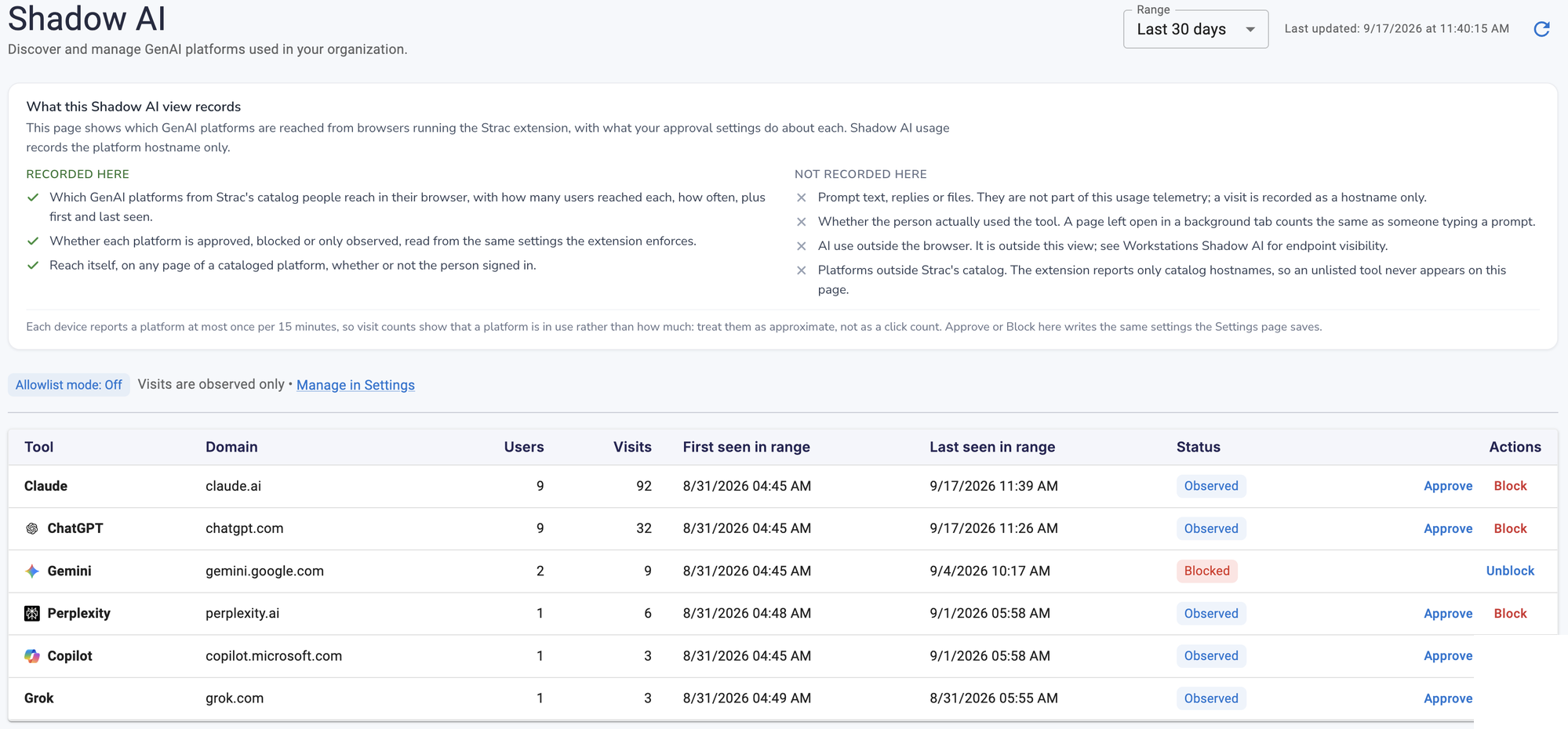
SharePoint data does not only leak through sharing; it leaks through the AI tools employees paste it into. Strac pairs SharePoint DLP with Shadow AI discovery and AI data governance, so you see every GenAI tool in use and govern what data can reach it. See Shadow AI and AI data governance.
Strac Shadow AI discovery dashboard: GenAI tools in use, with approve and block controls
🌶️ Spicy FAQs for SharePoint Online DLP
Is SharePoint Online DLP the same as Microsoft Purview DLP?
Mostly. SharePoint Online DLP is Purview DLP scoped to SharePoint sites. Purview defines the policy; SharePoint is one of the locations it enforces in, alongside OneDrive, Exchange, Teams, endpoints, and Copilot.
Why isn't Purview enough if we already pay for E5?
Because Purview restricts files and permissions inside Microsoft 365. It does not redact the sensitive fields, and it does not follow the data into Slack, Google Workspace, personal clouds, or browser AI tools. Strac adds that data layer across every surface.
Can we lock down SharePoint without slowing collaboration?
Yes, by redacting rather than blocking. Strac masks the regulated fields and lets the share proceed with a short explanation to the user. The contract reaches the partner; the Social Security numbers stay behind.
Can DLP fully prevent Copilot oversharing?
Not on its own. Copilot inherits whatever permissions exist, and permission cleanup is never finished. That is why the data layer matters: redact sensitive fields at rest and in responses, and an overshared file stops being a disclosure.
Where does SharePoint DLP fit in a Microsoft 365 data protection program?
Discover & Protect Data on SaaS, AI, MCP, Endpoints & Cloud
Strac provides end-to-end data loss prevention for all SaaS and Cloud apps. Integrate in under 10 minutes and experience the benefits of live DLP scanning, live redaction, and a fortified SaaS environment.


.webp)





.avif)




.gif)
