October 29, 2026

4
min read
How to Prevent Downloads in Google Drive?
Google Drive can now block downloads for every role, editors included. See how owner settings, admin DLP rules and Strac stop excessive downloads.
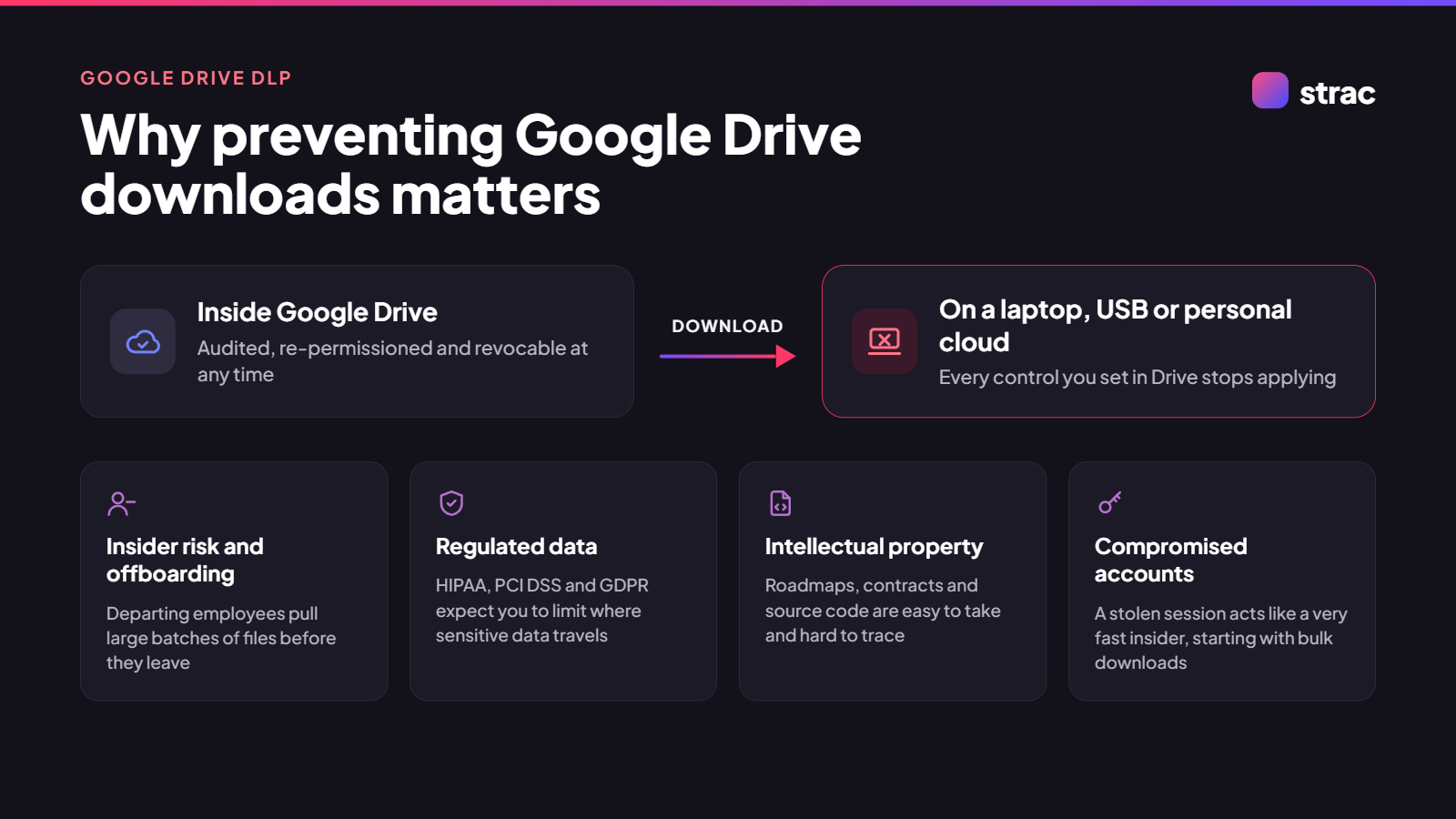
A file that sits in Google Drive can be audited, re-permissioned and revoked. A file that has been downloaded cannot. Once a copy lands on a laptop, a USB stick or a personal cloud account, every control you set in Drive stops applying to it.
That is why download control is one of the first things security teams ask about. The common reasons:
The good news is that Google has added real controls since 2024. The rest of this guide covers what each one does, which edition you need, and where the gaps still are.
Any file owner can turn off downloading, printing and copying for a file, and this works on every Google Workspace edition. The setting used to cover only viewers and commenters. Since July 2025, Google lets file owners and shared drive managers apply the same restriction to editors.
Steps (Google Drive Help):
What changes for each role:
While you are in the share dialog, uncheck Editors can change permissions and share so editors cannot hand the file to someone else. Note that a folder's permissions still win: if an editor has access to the parent folder and shares the folder, the new person gets the file too.
The catch: this is manual. Every owner has to remember to do it on every sensitive file, and most never will. Collaborators can see which restrictions apply and who set them through Google's security limitations view, but nobody is checking whether the right files are restricted in the first place. For a guide to the rest of the share dialog, see How to Set Up Google Drive Sharing Permissions to Prevent Data Loss.
Admins can take the decision away from end users with a data protection rule that applies information rights management (IRM) automatically. Since January 2025, these rules can block every role, including owners and editors. When an admin rule and an owner setting conflict, the admin rule wins.
Steps (Google Workspace Admin Help):
Useful details:
Edition requirement: DLP rules and Context-Aware Access are available on Enterprise Standard and Plus, Education Fundamentals, Standard and Plus, Frontline Standard, and Enterprise Essentials and Essentials Plus. Business Starter, Business Standard and Business Plus do not include them. See Google Workspace DLP: The Complete Guide for what each plan includes.
Owner settings and admin DLP rules are a real improvement, but they answer one question: should this file be downloadable? They do not tell you who is downloading what, how much, or why. These are the gaps security teams run into most often.
Google itself says these settings limit actions inside Drive, Docs, Sheets and Slides but cannot stop people sharing the content in other ways. Screenshots and photos of a screen are always possible. The goal is to make bulk exfiltration hard and visible, not to promise it is impossible.
Strac Google Drive DLP sits on top of Google's controls and covers the gaps above. It connects to Google Workspace over OAuth with no agent to install, and it works on every Workspace plan, Business editions included.
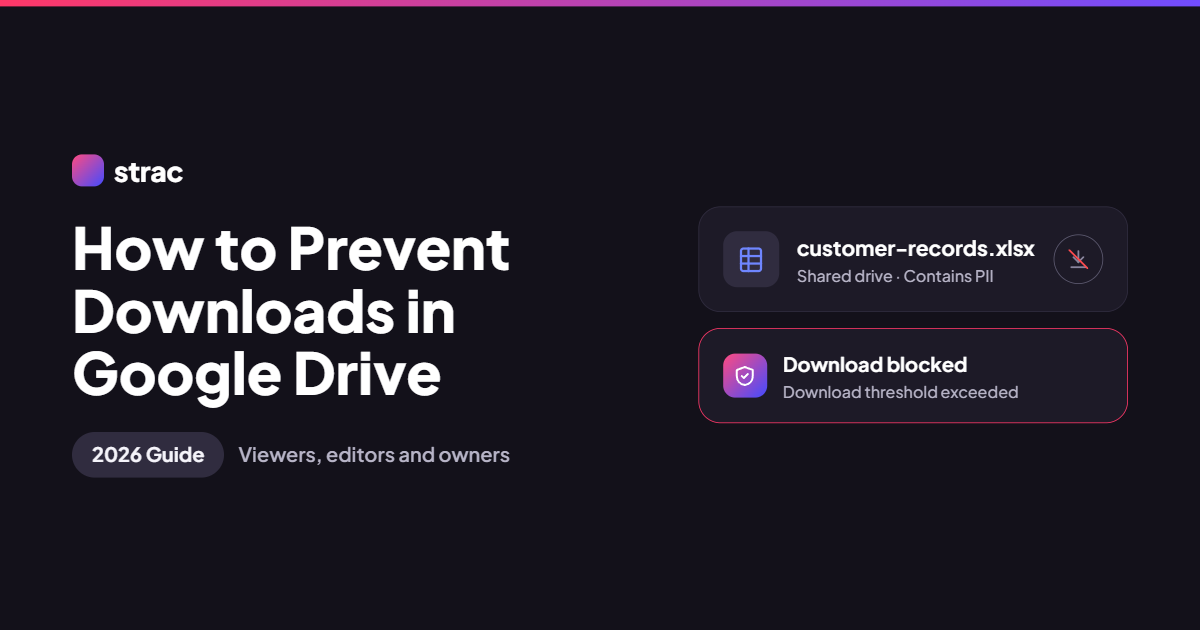
Threshold based download alerts and blocking. Set a limit such as a number of downloads in a time window, and Strac alerts or blocks when a user goes over it. You can apply the policy to all files or only to files that contain sensitive data. Strac tracks prints and moves the same way.
Alerts where your team already works. Download alerts go to Slack, Microsoft Teams, email or your SIEM, so a bulk download is seen in minutes instead of found in a log review weeks later.
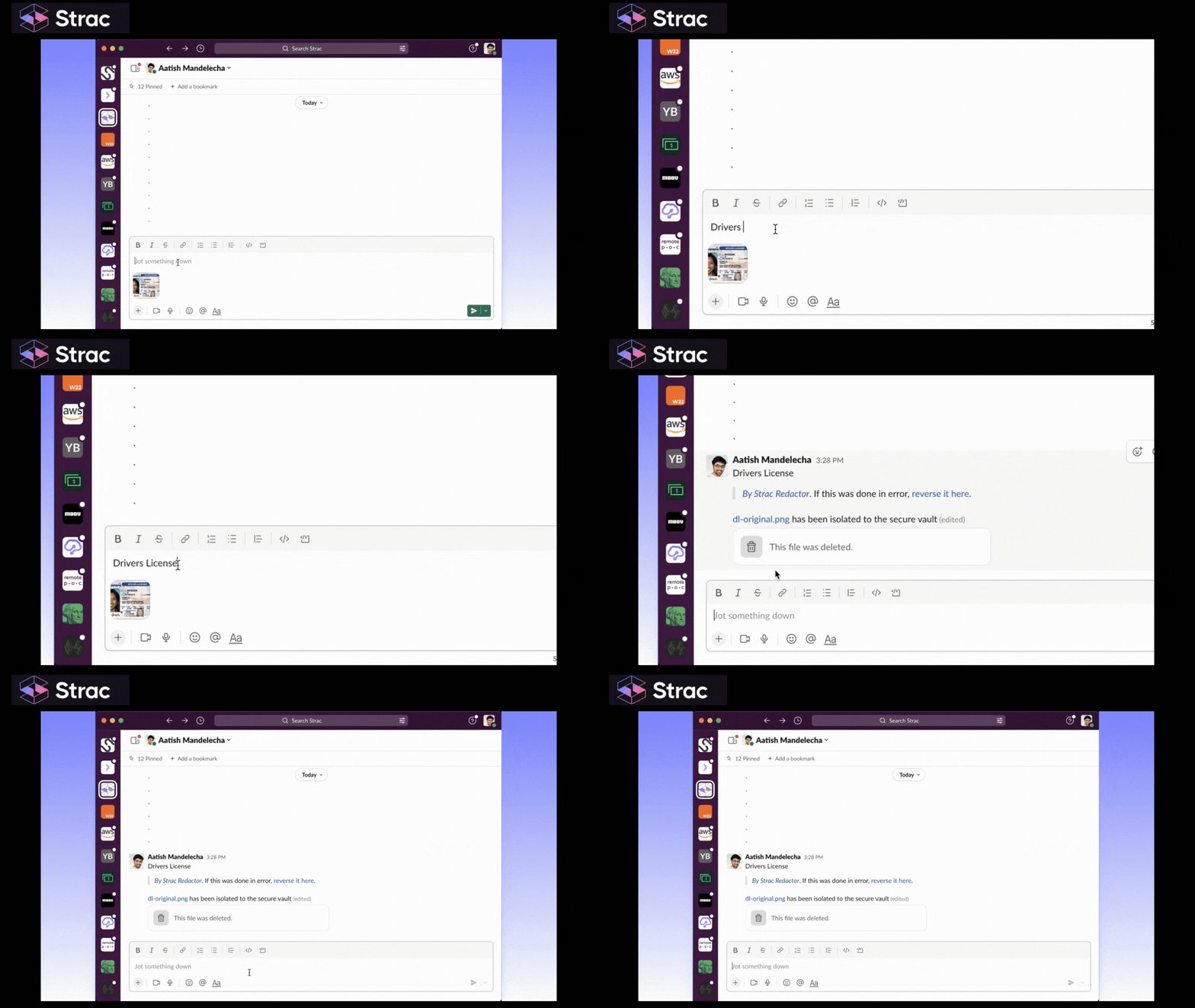
Detection that reads the whole file. Strac scans the full file, including images and scanned PDFs through OCR, against a catalog of sensitive data types covering PII, PHI, PCI, credentials and source code, plus your own custom detectors. Download policies can then target only the files that matter. To get these findings as they happen, see How to Set Up PII Alerts in Google Drive Automatically.
Fix the exposure, not just the download. From the same console you can remove public links, remove external collaborators and apply Google Drive labels, one file at a time or in bulk. Strac also shows when each user last accessed a file, so you can revoke access nobody is using. Google Drive DSPM gives you the full inventory of sensitive files across My Drive and shared drives before you write a single policy.
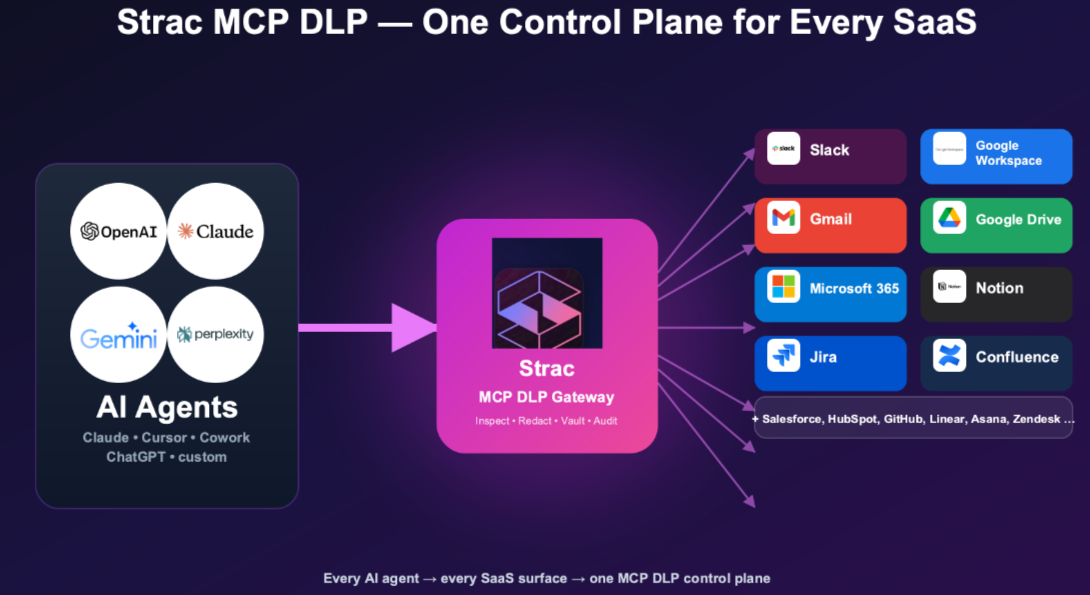
Cover AI agents and endpoints too. Strac MCP DLP inspects and redacts Drive content before it reaches Claude, ChatGPT, Cursor or a custom agent. For files that do get downloaded, Strac Endpoint DLP and Browser DLP extend protection to the device and the browser.
Putting it together: use owner settings for one-off sensitive files, use admin DLP rules to enforce IRM by content if your edition allows it, and add Strac for download visibility, threshold based blocking and remediation across the whole drive. This is one part of a full Google Drive DLP program.
Google Drive can finally block downloads for every role. File owners and shared drive managers can restrict editors as well as viewers, and admins on Enterprise and Education editions can enforce it automatically with DLP rules. If you have not revisited these settings since 2024, start there.
Native controls still only decide whether a single file can be downloaded. They do not tell you that someone just pulled 300 files, they do not cover Business plans with automation, and they miss sensitive data their scanners cannot read. Those are the cases behind most real Drive exfiltration incidents.
Use Google's settings as the baseline and add Strac Google Drive DLP for threshold based download alerts and blocking, full file detection and one click remediation. That way you control both what can be downloaded and who is downloading it.
Related integrations: Google Drive DLP, Gmail DLP, Google Sheets DLP, Chrome DLP, Endpoint DLP, All integrations
Strac connects to Google Workspace in minutes with no agent to install. You will see which sensitive files exist, who can reach them, and who is downloading them. Book a demo.
Yes. Unless the owner or an admin changes it, viewers and commenters can download, print and copy any file shared with them. View access alone does not stop someone from taking a copy.
Yes. Since July 2025, file owners and shared drive managers can uncheck Editors under "People who can download, copy, and print" in the share settings. Admins on supported editions can also block editors and owners with a DLP rule.
Not with a single switch in My Drive. You can select several files and apply the setting to all of them at once, set the restriction at the shared drive level as a manager, or let an admin DLP rule enforce it by content across the organization.
No. Google is clear that these settings only limit actions inside Drive, Docs, Sheets and Slides. Screenshots, photos of a screen and retyping are always possible, which is why monitoring and alerts matter as much as blocking.
Only manually. Business Starter, Standard and Plus support the owner setting on each file but not admin DLP rules. Strac adds automated, policy based download control on any Workspace plan.
Download events appear in the Drive audit log in the Google Admin console. Strac surfaces the same activity as real time alerts in Slack, Teams, email or your SIEM, and can filter to sensitive files only.
When the block comes from an admin DLP rule, yes. Google states that Gemini cannot access a file on a user's behalf if that user is restricted from downloading, printing or copying it. External AI agents using the Google Drive MCP server are a separate path, covered by Strac MCP DLP.
.avif)


.gif)


.webp)