Short answer: Zoom is secure for business use when it is configured correctly. Modern Zoom offers strong meeting-security controls and encryption, including AES 256-bit GCM transport encryption and an optional end-to-end encryption mode, SSO and two-factor authentication, waiting rooms, and granular admin policies. The real risk is not the platform but how it is run: meetings left open without a waiting room or passcode, oversharing of sensitive information in meeting chat and file transfers, cloud recordings and AI-generated transcripts that quietly capture regulated data, and third-party apps granted broad marketplace permissions. Just as important, Zoom does not natively scan or redact the sensitive content that lives inside chat messages, shared files, recordings, and transcripts, so an admin can lock down access and still have PII, PHI, or cardholder data sitting unprotected inside Zoom-managed storage.
Meeting and account security
Enforce SSO and two-factor authentication for every account
Account takeover is the fastest path into your meetings, recordings, and admin console, so authentication is the first control to tighten.
Configure Zoom with your identity provider (Okta, Entra ID, Google, or any SAML 2.0 IdP) and set Associated Domains so corporate email users are provisioned only through SSO.
Turn on two-factor authentication under Security in the admin portal for all users, and require it for admins and owners without exception.
Use role-based access control so that account owner, admin, and member roles map to least privilege, and review who holds admin rights on a schedule.
Lock down meeting entry with waiting rooms, passcodes, and locking
Most "Zoom incidents" trace back to a meeting anyone could join. Set the defaults at the account level and lock them so users cannot weaken them per meeting.
Require a passcode for all meetings, webinars, and personal meeting IDs, and enable embedded-passcode links only where convenience is needed.
Enable the Waiting Room by default so the host admits participants, and consider restricting it to guests outside your organization.
Restrict join to authenticated users only for internal meetings, and use the Lock Meeting control once expected attendees have arrived.
Limit Who can share screen to Host Only by default to prevent unwanted content being broadcast.
Turn on the end-to-end encryption option where it fits
Zoom encrypts media in transit by default, but sensitive conversations can be raised to a stronger tier.
Enable the end-to-end encryption (E2EE) setting at the account level so hosts can select it for high-sensitivity meetings.
Understand the trade-off: E2EE disables cloud recording, live transcription, and some join methods, so apply it selectively rather than globally.
For everything else, keep Enhanced (AES 256-bit GCM) encryption enforced and disable the option to join before the host for unattended rooms.
Data protection in chat, files, and recordings
Restrict in-meeting and Team Chat file transfer
Chat and file transfer are where sensitive data leaks quietly, because they bypass the controls admins apply to recordings.
In meeting chat, set allowed file types and block unrestricted sending, or disable in-meeting file transfer entirely for external participants.
In Team Chat, control who users can message and share files with, limit external contacts, and restrict file types that can be sent or received.
Remember that native Zoom does not inspect the content of these files or messages, so a document full of Social Security or card numbers transfers just as easily as a meeting agenda.
Control cloud recording access, expiration, and transcripts
Cloud recordings and AI transcripts are the single largest concentration of sensitive data in a Zoom tenant, and they persist long after the meeting ends.
Require a passcode on cloud recordings, disable public sharing links, and restrict viewing to authenticated users in your domain.
Set an auto-deletion policy so recordings and transcripts expire after a defined retention window instead of accumulating indefinitely.
Govern audio transcripts and AI Companion meeting summaries the same way, because a transcript can expose spoken PHI or financial detail that the video obscured.
Keep in mind Zoom stores and shares these recordings but does not scan them for regulated data, so sensitive content inside them stays unflagged.
Lock down the App Marketplace and third-party permissions
Marketplace apps can request broad OAuth scopes that reach meetings, recordings, chat, and user directories.
Set the Marketplace to pre-approval required so admins vet every app and its requested scopes before any user can install it.
Review installed apps for over-broad permissions such as read access to all recordings or chat history, and revoke those no longer in use.
Restrict who can create and publish internal apps and webhooks, which can export meeting and recording data outside your environment.
Monitoring and compliance
Use admin dashboards, audit logs, and data discovery
You cannot protect what you cannot see. Zoom gives visibility into usage and configuration, but you need to pair it with content-level discovery.
Review the admin Dashboard and Operation Logs for setting changes, sign-in activity, and recording access, and export logs to your SIEM.
Run data discovery across chat, files, recordings, and transcripts to find where PII, PHI, and PCI data actually lives, since Zoom's native tools report on activity but not on sensitive content.
Apply data loss prevention (DLP) that can detect and redact or quarantine sensitive data in Zoom chat, files, and recordings, closing the gap Zoom leaves open at the content layer.
Set retention and meet regulatory requirements
Compliance depends on both configuration and the data minimization that follows it.
For healthcare, use a Zoom plan that supports HIPAA and execute a Business Associate Agreement (BAA) with Zoom, then disable features the BAA does not cover and limit who can record PHI.
For payments, keep cardholder data out of chat and recordings to reduce PCI DSS scope, and use discovery to confirm none has leaked in.
For GDPR and similar regimes, define retention and deletion schedules for recordings, transcripts, and chat, and honor data-subject access and erasure requests with a record of where personal data is stored.
Zoom security checklist
Enforce SSO plus two-factor authentication for all users and require it for admins.
Default every meeting to a passcode, waiting room, and authenticated-user join.
Set screen sharing to Host Only and lock meetings once attendees arrive.
Enable the end-to-end encryption option for high-sensitivity meetings and keep AES 256-bit GCM enforced elsewhere.
Restrict in-meeting and Team Chat file transfer by type and recipient.
Passcode-protect cloud recordings and set auto-deletion for recordings and transcripts.
Require pre-approval for Marketplace apps and audit OAuth scopes regularly.
Monitor audit logs and run data discovery and DLP across chat, files, recordings, and transcripts to catch sensitive data Zoom does not scan.
✨ How Strac secures Zoom across every surface
Zoom security best practices close the configuration gaps. Strac closes the data gap: it discovers the sensitive data inside Zoom, remediates exposure automatically, and extends the same protection to every other place that data flows, AI agents, browsers, and endpoints. One agentless platform across SaaS, cloud, GenAI, MCP, browser, and endpoint.
One platform protecting Zoom data everywhere it lives and moves.
1. Discover and classify sensitive data in Zoom (DSPM)
Strac's DSPM continuously scans Zoom for PII, PHI, PCI, and secrets using ML and OCR across 100+ data types, so you know exactly where your regulated data lives and which items are overshared, public, or out of policy. This is the layer native Zoom controls skip: they can enforce a setting, but they cannot tell you where all your sensitive data actually sits.
Strac discovers and classifies every sensitive file in Zoom, automatically.
2. Redact and remediate exposure automatically (SaaS DLP)
Finding exposed data is table stakes. Strac's Zoom DLP acts on it, under your policy: redact or mask sensitive data in chat, files, recordings, and transcripts, quarantine or delete recordings and files that carry regulated data, and label and classify, with a full audit trail mapped to HIPAA, PCI DSS, SOC 2, ISO 27001, and GDPR. Most alternatives stop at an alert; Strac fixes the exposure.
Strac remediates Zoom exposure in place, revoke public links, remove external members, redact, quarantine.
3. Govern what AI agents pull from Zoom (MCP DLP)
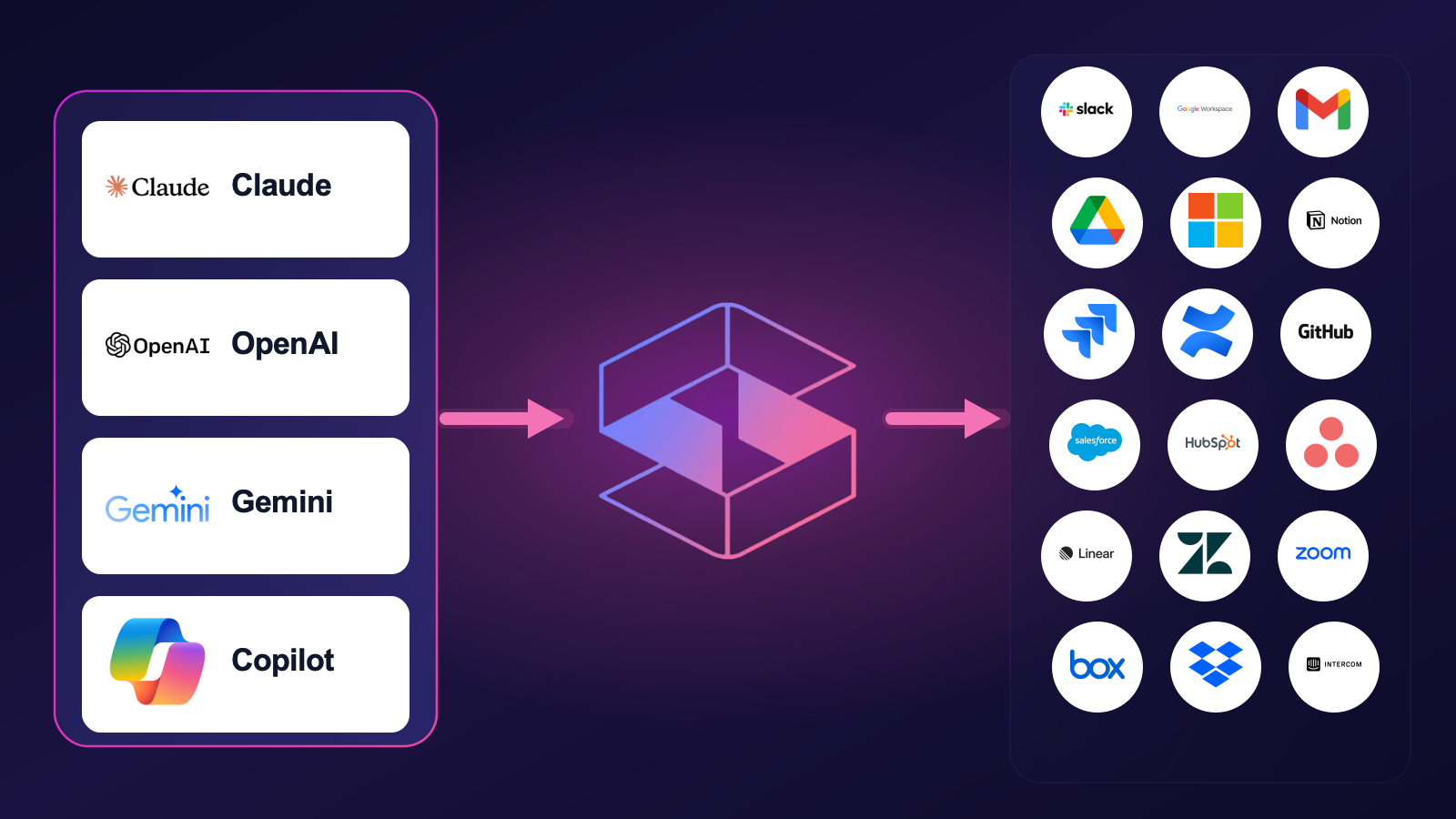
AI agents now read directly from Zoom over the Model Context Protocol. Strac's MCP DLP sits in that path as a reverse proxy and redacts sensitive values in tool responses before the model ever sees them, and governs exactly which agents can reach which Zoom data. Connect the Zoom MCP connector once and every agent tool call is inspected.
Strac governs the MCP boundary so AI agents can use Zoom without exfiltrating sensitive data.
4. Stop Zoom data leaks in the browser
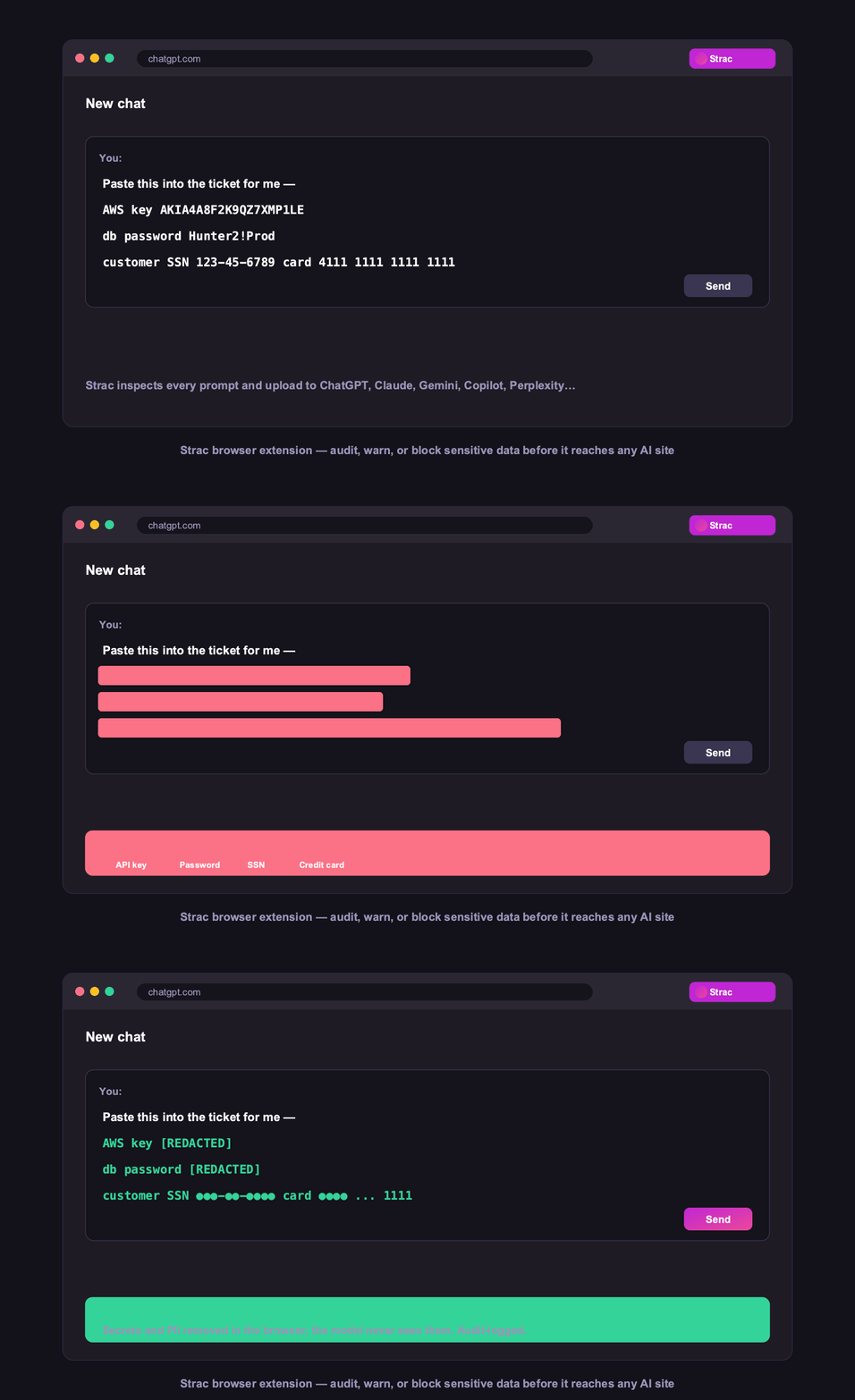
Strac's browser DLP extension for Chrome, Edge, Firefox, and Safari blocks or redacts sensitive uploads, downloads, and pastes to and from Zoom in real time, including data a user tries to move from Zoom into an AI tool in another tab.
Browser DLP blocks or redacts sensitive Zoom data in the browser, live.
5. Control Zoom data on endpoints (Mac and Windows)
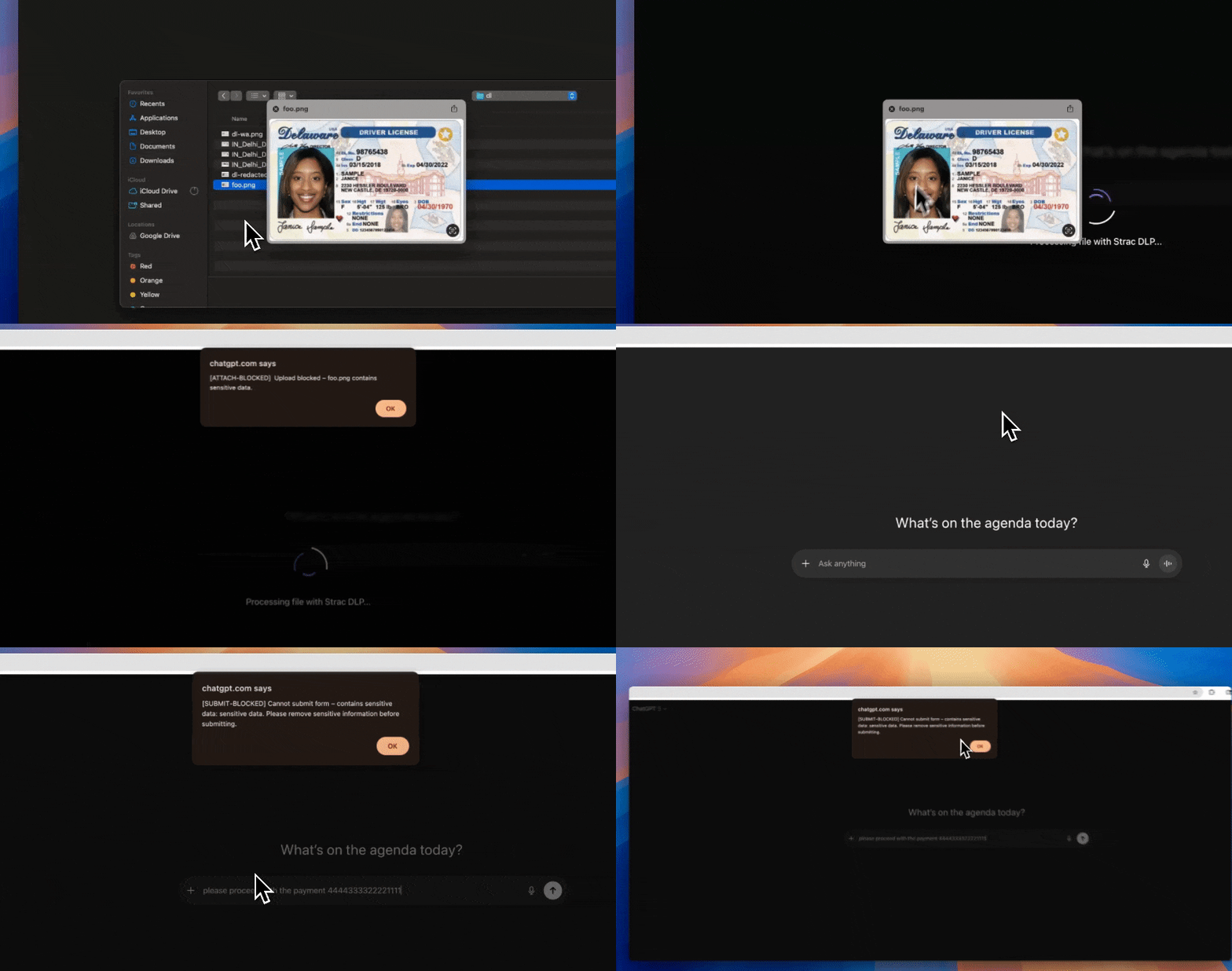
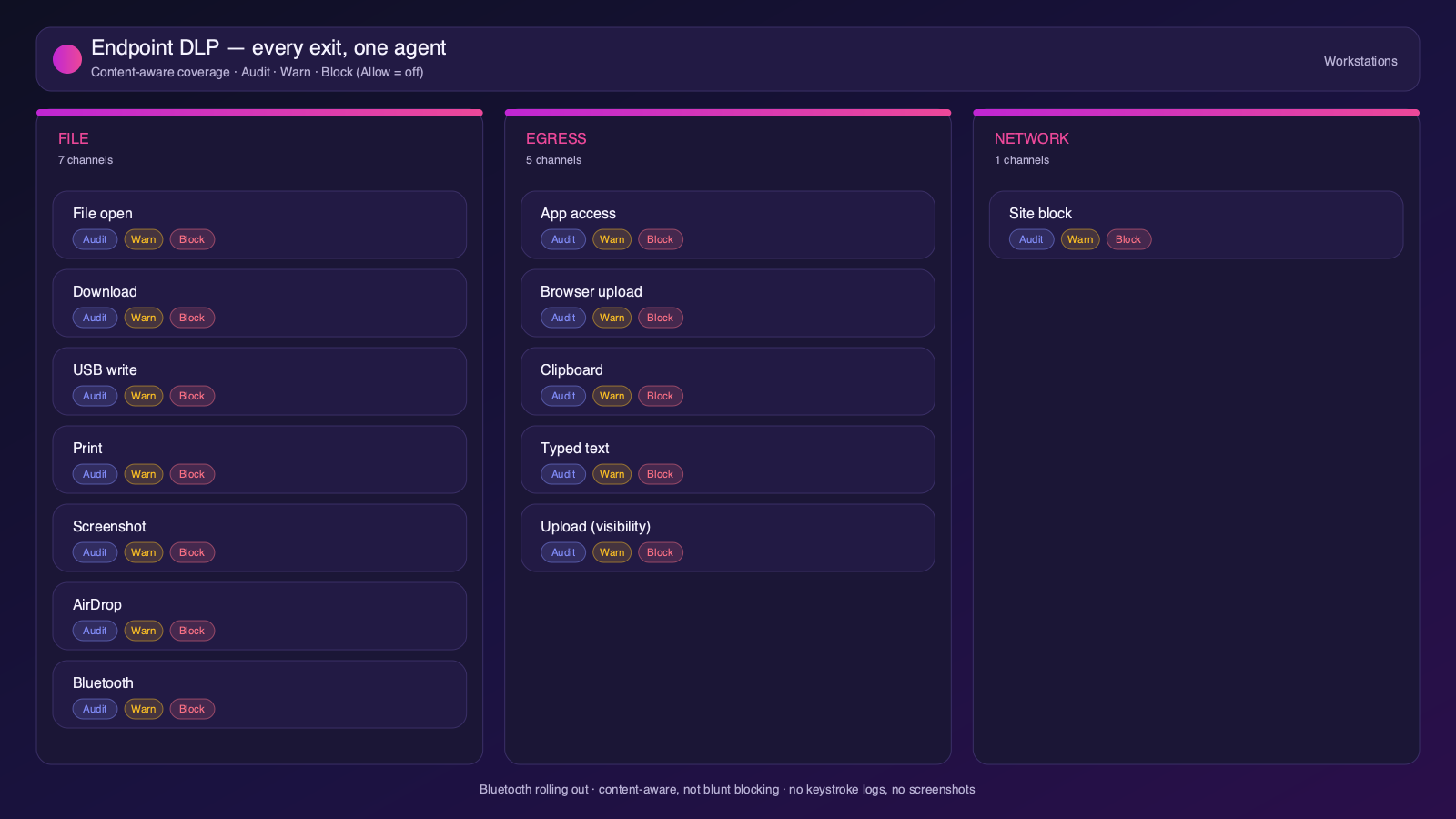
Strac's endpoint DLP agent controls Zoom data as it lands on laptops, with four modes: block, warn, allow, and audit across file downloads, copies, and screenshots on both Mac and Windows.
Content-aware endpoint DLP: block, warn, allow, or audit on Mac and Windows.
6. One platform, every surface
Zoom is one of 50+ places Strac protects. The same engine covers SaaS, cloud, GenAI, MCP, browser, and endpoint, so your Zoom data stays protected everywhere it flows, not just at rest. That breadth, plus remediation that actually fixes exposure, is why teams consolidate on Strac instead of stacking point tools.
50+ integrations across SaaS, cloud, databases, endpoints, browsers, and AI.
🌶️ Frequently asked: Zoom security
Is Zoom secure?
Zoom is secure when configured correctly, but its defaults around sharing and access make oversharing and misconfiguration a leading cause of Zoom data exposure, and it does not scan the sensitive data inside your content. Hardening the configuration plus adding DSPM and DLP (like Strac) to discover and remediate sensitive data closes the gap.
Is Zoom secure for sensitive data?
It can be, with SSO/2FA, meeting controls, recording protection, and content scanning. The risk is PII, PHI, or card data in chat, files, cloud recordings, and transcripts, which Zoom does not scan or redact. Strac discovers and remediates sensitive data across Zoom chat, files, and recordings.
Does Zoom have DLP?
Zoom offers admin and data-governance controls, but it does not scan or redact the sensitive content inside chat, files, and recordings. Strac adds agentless discovery, in-place redaction and masking, automatic remediation of exposed data, and the same protection beyond Zoom, across browsers, endpoints, and AI agents.
What are the most important Zoom security best practices?
Enforce least-privilege access and MFA, restrict external and public sharing, review third-party app access, continuously discover and classify sensitive data, monitor activity for risky behavior, and remediate exposure automatically. The sections above cover each in detail.
How does Strac secure Zoom?
Strac connects to Zoom agentlessly, runs DSPM discovery across your Zoom data, and remediates exposure (redact, mask, revoke access, quarantine, label). It extends the same protection to AI agents via MCP DLP, the browser, and Mac and Windows endpoints.