Short answer: Microsoft Teams is secure, it is built on Microsoft 365 and Entra ID security, but its risks come from guest and external access, sensitive data in chats, channels, and shared files (which live in SharePoint and OneDrive), broad app permissions, and the fact that native controls do not scan or remediate the actual sensitive content. The best practices below harden the configuration; pairing them with DSPM and DLP (like Strac) finds and remediates sensitive data in Teams automatically.
Access and guest controls
Enforce MFA and Conditional Access for every Teams sign-in
Teams rides on Microsoft Entra ID, so identity is the first control plane. Most account compromise in Teams starts with a stolen password, not a Teams-specific flaw.
Require multi-factor authentication for all users via an Entra Conditional Access policy, not per-user MFA, so it applies consistently to the Teams desktop, web, and mobile clients.
Block legacy authentication protocols that bypass MFA, and require compliant or Entra-hybrid-joined devices for access to Teams and the underlying SharePoint and OneDrive data.
Use sign-in risk and user risk policies so risky logins trigger step-up authentication or a block, and scope location or device conditions for admins managing the Teams admin center.
Govern guest and external access deliberately
Guest access (people added into your tenant) and external access (federation with other domains) are two separate settings, and both are on by default in many tenants. This is the most common way sensitive conversations and files leak outside the org.
In the Teams admin center and Entra External Identities, decide whether guests can be invited at all, and restrict invitations to specific allowed domains rather than leaving open federation.
Set guest permissions so guests cannot create teams, add other guests, or access resources beyond the specific team they were invited to.
Enable access reviews in Entra ID to recertify guest accounts on a recurring schedule and automatically remove stale external users who no longer need access.
Pair external access controls with SharePoint and OneDrive sharing settings, since a Teams file shared externally is governed by the SharePoint sharing policy, not Teams itself.
Control teams, channels, and app sprawl
Uncontrolled team creation leaves orphaned teams, over-shared channels, and risky third-party apps with standing access to messages and files.
Use a team creation policy (restricting Microsoft 365 group creation to approved security groups) and apply naming and classification conventions so ownership and sensitivity are clear.
Apply Microsoft 365 group expiration and lifecycle policies so inactive teams are reviewed and archived rather than lingering with live data.
Be deliberate about shared channels (Teams Connect), which let external organizations into a channel without full guest accounts; scope them with cross-tenant access settings.
Set app permission and app setup policies to allow only vetted Microsoft, third-party, and custom apps and bots. Many apps request broad Graph permissions to read chats, files, and user data, so review consent grants and disable or restrict unmanaged app installation.
Data protection in chats and files
Understand where Teams data actually lives
Teams is a collaboration layer on top of other Microsoft 365 services. Knowing the storage map is essential before you can protect it.
Files shared in a channel are stored in that team's SharePoint site; files shared in a one-to-one or group chat are stored in the sender's OneDrive.
Chat and channel messages are stored in Exchange mailboxes behind the scenes, and meeting recordings land in OneDrive or SharePoint.
Because of this, your Teams data protection posture is only as strong as your SharePoint, OneDrive, and Exchange controls.
Apply sensitivity labels and encryption
Microsoft Purview sensitivity labels let you classify and protect both the container and the content.
Use container labels on teams and their Microsoft 365 groups to set the privacy level, guest access, and unmanaged-device access for everything inside.
Use file-level sensitivity labels that apply encryption and usage rights to documents, so protection travels with the file even if it leaves the tenant.
Configure default labeling and mandatory labeling policies so users classify content consistently rather than relying on memory.
Run DLP for chats, channels, and files, and understand the gaps
Microsoft Purview Data Loss Prevention can act on Teams, but admins should be clear about what it does and does not cover.
Purview DLP policies for Teams primarily cover chat and channel messages and the files surfaced through SharePoint and OneDrive, and can block sharing when a message or document matches a sensitive information type.
Build policies around the data you care about: PII such as names and national IDs, PHI under HIPAA, PCI cardholder data, and secrets like API keys, access tokens, and connection strings pasted into chats.
Native sensitive information types rely on pattern and keyword matching and are tuned conservatively, so credentials, screenshots, and PII buried inside attachments or images frequently go undetected. Native controls generally do not scan the actual content inside every attachment and image or automatically redact or remediate the sensitive values in place.
Treat DLP as detection-plus-blocking, and plan for deeper content inspection and remediation of the real sensitive data sitting in Teams messages, channel files, and OneDrive attachments, which is where most exposure accumulates.
Secure meetings and recordings
Meeting settings are a frequent weak point because defaults favor convenience over containment.
Configure meeting policies so the lobby holds external and anonymous participants, and restrict who can bypass the lobby for sensitive meetings.
Limit who can present to specific people to prevent screen-share hijacking, and control who can record and whether transcription is allowed.
Remember that recordings and transcripts become files in OneDrive or SharePoint and inherit those sharing and retention controls, so they need the same labeling and DLP coverage as other content.
Monitoring and compliance
Set retention, eDiscovery, and audit logging
You cannot investigate or defend what you are not retaining and logging.
Create Purview retention policies for Teams chats and channel messages separately, since they are governed independently, and set retention to meet legal and regulatory requirements without keeping sensitive data longer than needed.
Confirm unified audit logging is enabled so Teams events (membership changes, external sharing, app installs, access) are searchable, and feed those logs into your SIEM.
Use eDiscovery and legal hold to preserve Teams content for investigations, and validate that holds capture chats, channels, and associated files.
Monitor, alert, and map to compliance frameworks
Continuous monitoring closes the loop between policy and reality.
Configure alert policies in Purview and Defender for Office 365 for anomalous external sharing, mass downloads, risky app consent, and DLP matches, and route them to a team that will act.
Use Microsoft Secure Score and the Teams admin center reports to track configuration drift over time.
Map controls to the frameworks you are accountable for: HIPAA (PHI in chats, files, and recordings), PCI DSS (cardholder data that should never live in Teams), and GDPR (data subject rights, data minimization, and cross-border transfer when guests are involved).
Microsoft Teams security checklist
Enforce MFA and Conditional Access for all Teams access through Entra ID.
Restrict guest and external access to approved domains and run recurring guest access reviews.
Limit team creation and apply Microsoft 365 group expiration and lifecycle policies.
Lock down app, bot, and custom app permissions and review Graph consent grants.
Apply sensitivity labels and encryption to teams, channels, and files.
Deploy Purview DLP for chats, channels, and files, and close the content-scanning and remediation gaps.
Set retention, enable unified audit logging and eDiscovery, and alert on risky activity across Teams, SharePoint, and OneDrive.
✨ How Strac secures Microsoft Teams across every surface
Microsoft Teams security best practices close the configuration gaps. Strac closes the data gap: it discovers the sensitive data inside Microsoft Teams, remediates exposure automatically, and extends the same protection to every other place that data flows, AI agents, browsers, and endpoints. One agentless platform across SaaS, cloud, GenAI, MCP, browser, and endpoint.
One platform protecting Microsoft Teams data everywhere it lives and moves.
1. Discover and classify sensitive data in Microsoft Teams (DSPM)
Strac's DSPM continuously scans Microsoft Teams for PII, PHI, PCI, and secrets using ML and OCR across 100+ data types, so you know exactly where your regulated data lives and which items are overshared, public, or out of policy. This is the layer native Microsoft Teams controls skip: they can enforce a setting, but they cannot tell you where all your sensitive data actually sits.
Strac discovers and classifies every sensitive file in Microsoft Teams, automatically.
2. Redact and remediate exposure automatically (SaaS DLP)
Finding exposed data is table stakes. Strac's Microsoft Teams DLP acts on it, under your policy: redact or mask sensitive values in place, revoke public "anyone with the link" sharing, remove external members from files and sites, quarantine or delete items that should not exist, and label and classify, with a full audit trail mapped to HIPAA, PCI DSS, SOC 2, ISO 27001, and GDPR. Most alternatives stop at an alert; Strac fixes the exposure.
Strac remediates Microsoft Teams exposure in place, revoke public links, remove external members, redact, quarantine.
3. Govern what AI agents pull from Microsoft Teams (MCP DLP)
AI agents now read directly from Microsoft Teams over the Model Context Protocol. Strac's MCP DLP sits in that path as a reverse proxy and redacts sensitive values in tool responses before the model ever sees them, and governs exactly which agents can reach which Microsoft Teams data. Connect the Microsoft Teams MCP connector once and every agent tool call is inspected.
Strac governs the MCP boundary so AI agents can use Microsoft Teams without exfiltrating sensitive data.
4. Stop Microsoft Teams data leaks in the browser
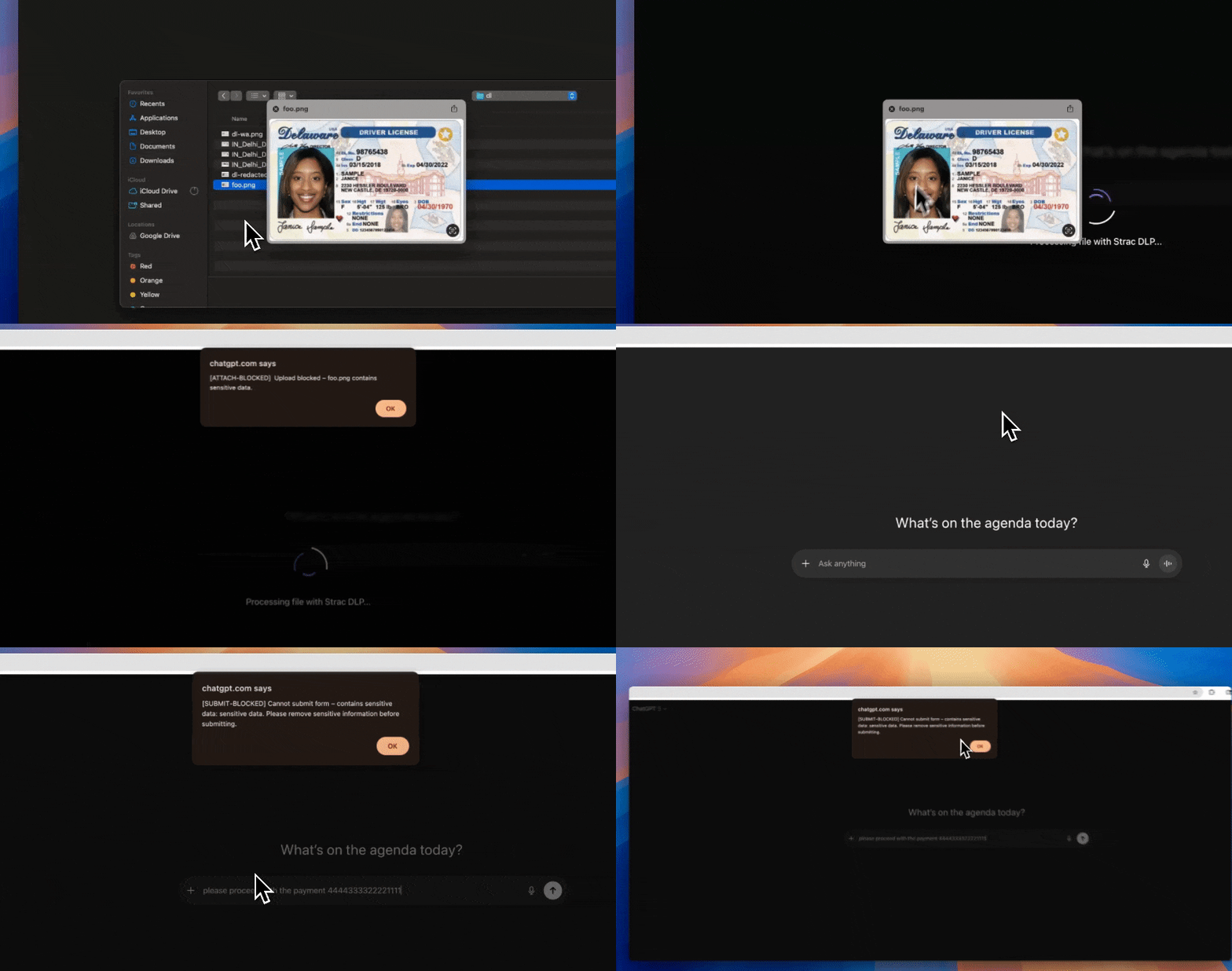
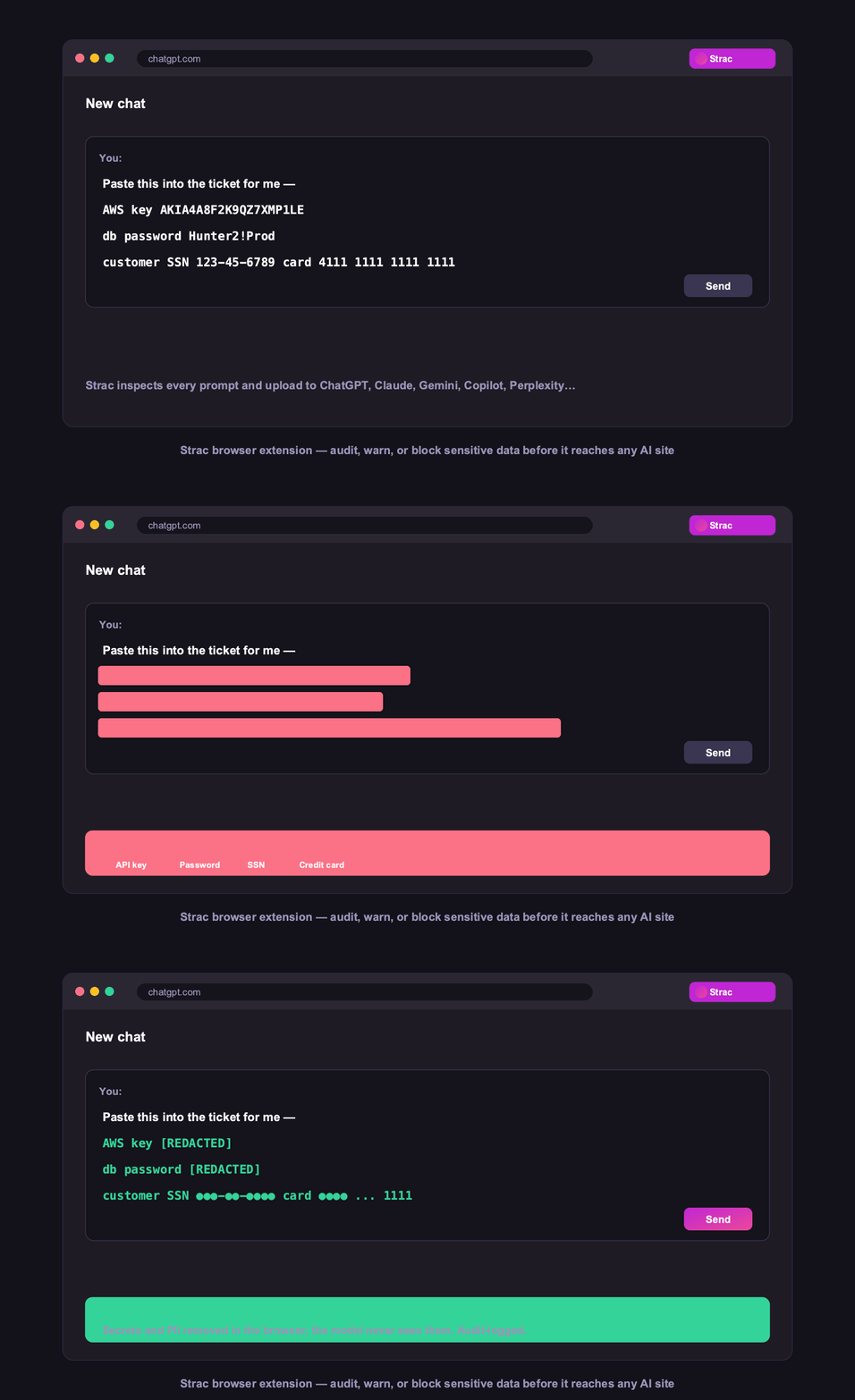
Strac's browser DLP extension for Chrome, Edge, Firefox, and Safari blocks or redacts sensitive uploads, downloads, and pastes to and from Microsoft Teams in real time, including data a user tries to move from Microsoft Teams into an AI tool in another tab.
Browser DLP blocks or redacts sensitive Microsoft Teams data in the browser, live.
5. Control Microsoft Teams data on endpoints (Mac and Windows)
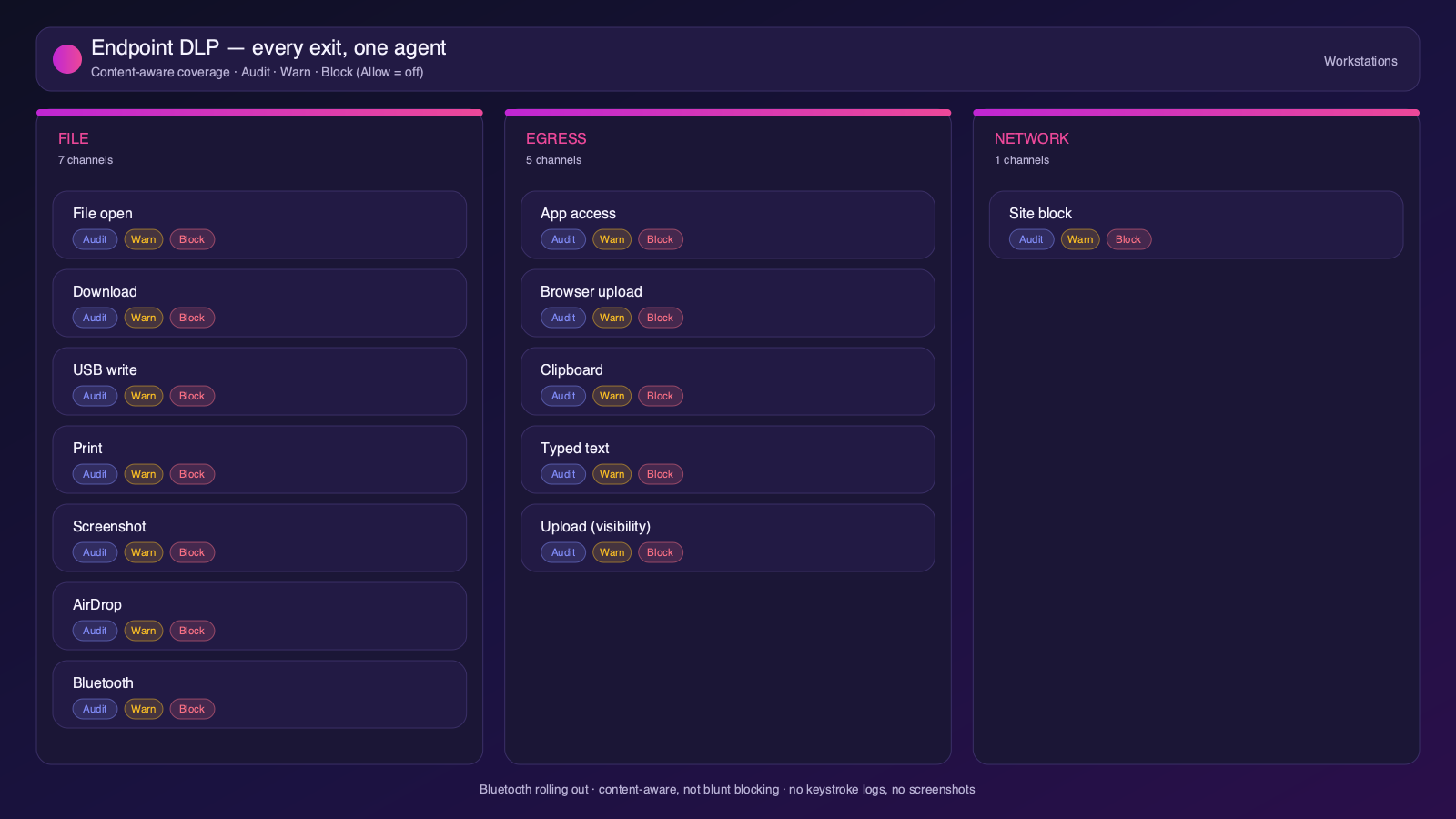
Strac's endpoint DLP agent controls Microsoft Teams data as it lands on laptops, with four modes: block, warn, allow, and audit across file downloads, copies, and screenshots on both Mac and Windows.
Content-aware endpoint DLP: block, warn, allow, or audit on Mac and Windows.
6. One platform, every surface
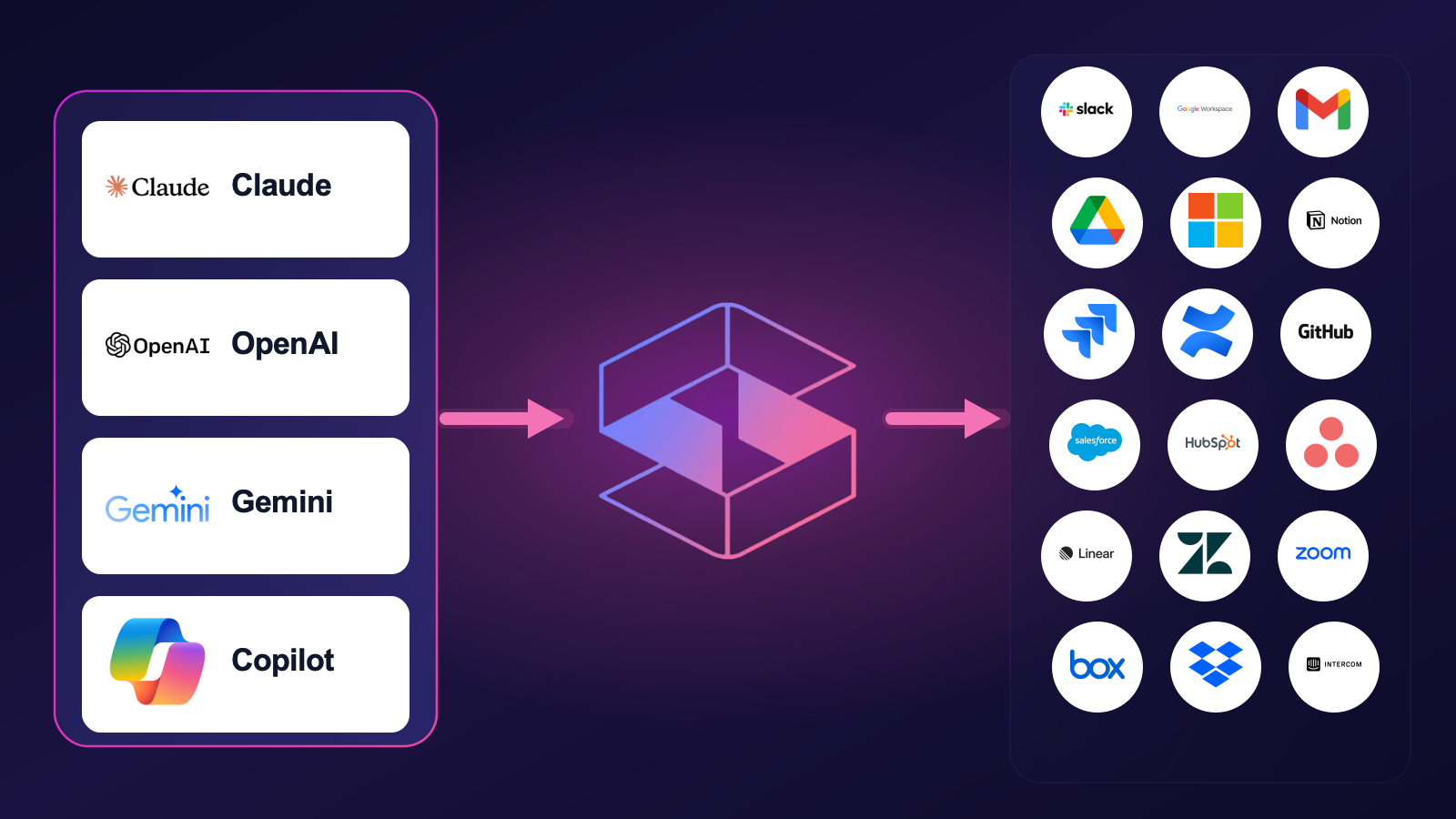
Microsoft Teams is one of 50+ places Strac protects. The same engine covers SaaS, cloud, GenAI, MCP, browser, and endpoint, so your Microsoft Teams data stays protected everywhere it flows, not just at rest. That breadth, plus remediation that actually fixes exposure, is why teams consolidate on Strac instead of stacking point tools.
50+ integrations across SaaS, cloud, databases, endpoints, browsers, and AI.
🌶️ Frequently asked: Microsoft Teams security
Is Microsoft Teams secure?
Microsoft Teams is secure when configured correctly, but its defaults around sharing and access make oversharing and misconfiguration a leading cause of Microsoft Teams data exposure, and it does not scan the sensitive data inside your content. Hardening the configuration plus adding DSPM and DLP (like Strac) to discover and remediate sensitive data closes the gap.
Is Microsoft Teams secure for sensitive data?
It can be, with MFA/Conditional Access, guest controls, sensitivity labels, and DLP. The risk is PII, PHI, PCI, or secrets in chats, channels, and shared files (which live in SharePoint and OneDrive), which native controls do not fully scan or redact. Strac discovers and remediates sensitive data across Teams messages and the SharePoint/OneDrive files behind them.
Does Microsoft Teams have DLP?
Microsoft Purview DLP covers Teams chats, channels, and files, but it relies on pattern matching and does not redact or remediate the values inside attachments. Strac adds agentless discovery, in-place redaction and masking, automatic remediation of public links and external access, and the same protection beyond Microsoft Teams, across browsers, endpoints, and AI agents.
What are the most important Microsoft Teams security best practices?
Enforce least-privilege access and MFA, restrict external and public sharing, review third-party app access, continuously discover and classify sensitive data, monitor activity for risky behavior, and remediate exposure automatically. The sections above cover each in detail.
How does Strac secure Microsoft Teams?
Strac connects to Microsoft Teams agentlessly, runs DSPM discovery across your Microsoft Teams data, and remediates exposure (redact, mask, revoke public access, remove external access, quarantine, label). It extends the same protection to AI agents via MCP DLP, the browser, and Mac and Windows endpoints.