Short answer: Dropbox encrypts files at rest and in transit, holds major compliance certifications, and is secure when it is configured correctly, but most real-world incidents are configuration and human-error problems rather than failures of the platform. The biggest risks in Dropbox Business and Team are "anyone with the link" shared links that spread beyond their intended audience, loose external and team sharing, broad third-party app connections that inherit access to your content, files syncing to unmanaged or personal devices, and the fact that Dropbox does not natively scan the sensitive data inside your files, so PII, PHI, and PCI can sit in shared folders without anyone knowing. Securing Dropbox is about locking down sharing, identity, devices, and visibility into what is actually stored.
Access and sharing controls
Lock down shared links and "anyone with the link" access
Shared links are the most common way data leaves Dropbox unintentionally. A link set to "anyone with the link" needs no login and can be forwarded, indexed, or pasted anywhere.
In the Admin Console under Settings, set the default link permission so new links are restricted to team members only, not "anyone with the link."
Require passwords on shared links and set link expiration dates so access does not live forever.
Disable the ability to download from view-only links where recipients only need to preview content.
Periodically audit existing links, since a policy change going forward does not retroactively fix links already created.
Control team and external sharing with group policies
Without guardrails, members can share folders outside the organization and add external collaborators to sensitive content.
Set sharing permissions so that only team members, or specific allowlisted domains, can be added to shared folders.
Restrict who can create and manage shared folders, and default new members to "view" rather than "edit" access.
Use groups to assign folder access by role or department instead of sharing with individuals, which makes access easier to review and revoke.
Apply folder-level permissions so that highly sensitive folders cannot be re-shared downstream by collaborators.
Enforce SSO, 2FA, and least-privilege admin roles
Strong identity controls stop most account-takeover attacks before they reach your data.
Enable single sign-on through your identity provider and require it for all members so access is centrally governed and can be cut off instantly on offboarding.
Require two-step verification team-wide, preferring an authenticator app or hardware key over SMS.
Apply least privilege to admin roles, using the distinct tiers (team admin, user management admin, support admin, and so on) rather than making everyone a full admin.
Review the admin list regularly and remove standing access that is no longer needed.
Data protection and compliance
Review connected third-party apps
Members can authorize third-party apps that gain API access to Dropbox content, and those grants persist until revoked.
In the Admin Console under Connected apps, review every app that has access and the scope it was granted.
Revoke apps that are unused, unknown, or over-permissioned for what the team actually needs.
Where supported, move to an app allowlist so members cannot connect arbitrary apps to corporate data.
Discover and classify sensitive data
You cannot protect what you cannot see. Native Dropbox controls govern who can access a file, but they do not look inside the file to tell you whether it contains regulated data.
Inventory where PII, PHI, PCI, and other regulated data actually lives across your folders rather than assuming it is only in "secure" locations.
Classify files by sensitivity so that access, retention, and sharing rules can be applied consistently.
Recognize the gap: Dropbox does not natively scan file contents for sensitive data patterns such as Social Security numbers, card numbers, or medical records, so content-level data loss prevention has to be layered on to catch and remediate exposure automatically.
Apply DLP, retention, and compliance controls
Regulated data brings obligations that go beyond access permissions.
Use data loss prevention to detect sensitive content in files and act on it, for example alerting, quarantining, or removing public access when regulated data is found in an overshared location.
Configure retention and data governance policies so files are kept and disposed of according to legal and regulatory requirements rather than indefinitely.
Map your configuration to the frameworks you answer to, such as HIPAA for PHI, PCI DSS for cardholder data, and GDPR for personal data, and keep a signed business associate agreement in place where PHI is involved.
Monitoring and device security
Manage device approvals, sync, and remote wipe
Every linked device is another copy of your data sitting outside the cloud.
Require device approvals so admins control which desktops and mobile devices can link to team accounts, and limit the number of devices per user.
Use remote wipe to remove Dropbox data from lost, stolen, or offboarded devices, and unlink devices promptly when someone leaves.
Control sync so sensitive folders are not downloaded in full to every endpoint, favoring online-only or selective sync for unmanaged or personal machines.
Find public and overshared files
Exposure accumulates quietly as people share links and folders over time.
Regularly run a review of files and folders shared externally or via public links, and pull access that is no longer needed.
Pay special attention to folders holding financial, legal, HR, or customer data, since a single stale "anyone with the link" there can expose a large volume of records.
Make link and folder review a recurring process, not a one-time cleanup, because new exposure is created every week.
Monitor activity logs and configure alerts
Visibility into what is happening lets you catch misuse and prove compliance.
Use the admin activity log to track sharing events, logins, app connections, membership changes, and device activity.
Export or stream events to your SIEM so Dropbox activity sits alongside the rest of your security telemetry.
Set alerts for high-risk behavior such as mass downloads, large volumes of external sharing, or failed login spikes so you can respond quickly.
Dropbox security checklist
Set the default shared-link permission to team-only, and require passwords plus expiration on links.
Restrict external and team sharing, assigning folder access through groups by role.
Enforce SSO and team-wide two-step verification, preferring authenticator apps or hardware keys.
Apply least privilege across admin roles and review the admin list regularly.
Audit and revoke connected third-party apps, moving to an allowlist where possible.
Require device approvals, limit sync to unmanaged devices, and remote-wipe lost or offboarded devices.
Discover and classify PII, PHI, and PCI, then apply content-level DLP since Dropbox does not scan inside files.
Review public and overshared files routinely, and monitor activity logs with alerts for high-risk events.
✨ How Strac secures Dropbox across every surface
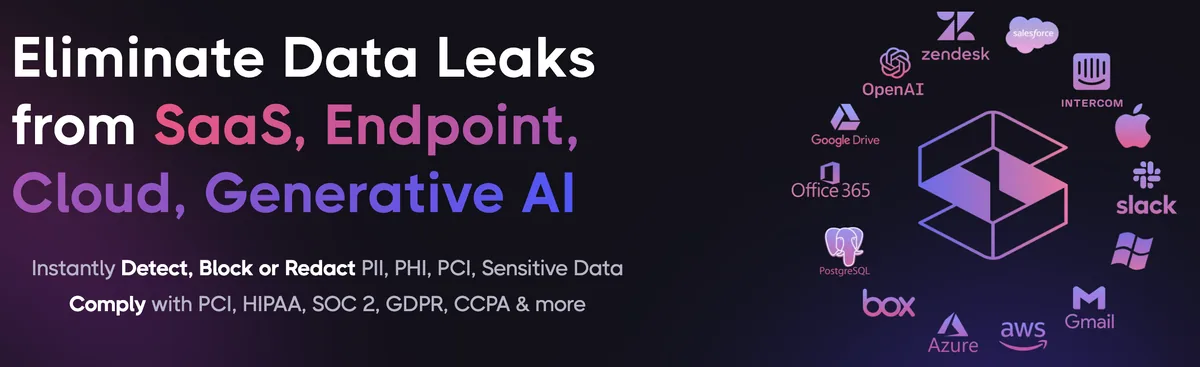
Dropbox security best practices close the configuration gaps. Strac closes the data gap: it discovers the sensitive data inside Dropbox, remediates exposure automatically, and extends the same protection to every other place that data flows, AI agents, browsers, and endpoints. One agentless platform across SaaS, cloud, GenAI, MCP, browser, and endpoint.
One platform protecting Dropbox data everywhere it lives and moves.
1. Discover and classify sensitive data in Dropbox (DSPM)
Strac's DSPM continuously scans Dropbox for PII, PHI, PCI, and secrets using ML and OCR across 100+ data types, so you know exactly where your regulated data lives and which items are overshared, public, or out of policy. This is the layer native Dropbox controls skip: they can enforce a setting, but they cannot tell you where all your sensitive data actually sits.
Strac discovers and classifies every sensitive file in Dropbox, automatically.
2. Redact and remediate exposure automatically (SaaS DLP)
Finding exposed data is table stakes. Strac's Dropbox DLP acts on it, under your policy: redact or mask sensitive values in place, revoke public "anyone with the link" sharing, remove external members from files and folders, quarantine or delete items that should not exist, and label and classify, with a full audit trail mapped to HIPAA, PCI DSS, SOC 2, ISO 27001, and GDPR. Most alternatives stop at an alert; Strac fixes the exposure.
Strac remediates Dropbox exposure in place, revoke public links, remove external members, redact, quarantine.
3. Govern what AI agents pull from Dropbox (MCP DLP)
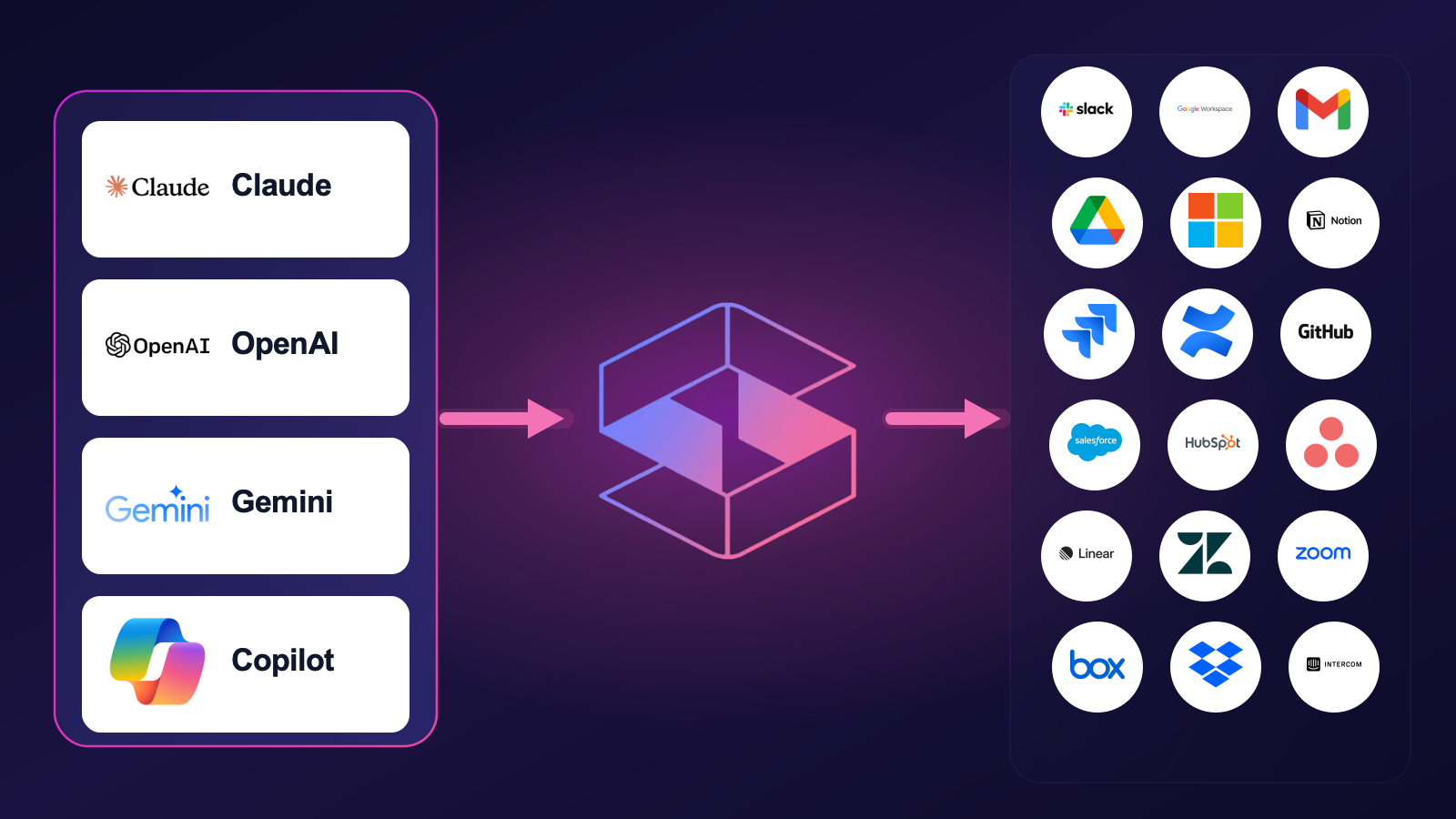
AI agents now read directly from Dropbox over the Model Context Protocol. Strac's MCP DLP sits in that path as a reverse proxy and redacts sensitive values in tool responses before the model ever sees them, and governs exactly which agents can reach which Dropbox data. Connect the Dropbox MCP connector once and every agent tool call is inspected.
Strac governs the MCP boundary so AI agents can use Dropbox without exfiltrating sensitive data.
4. Stop Dropbox data leaks in the browser
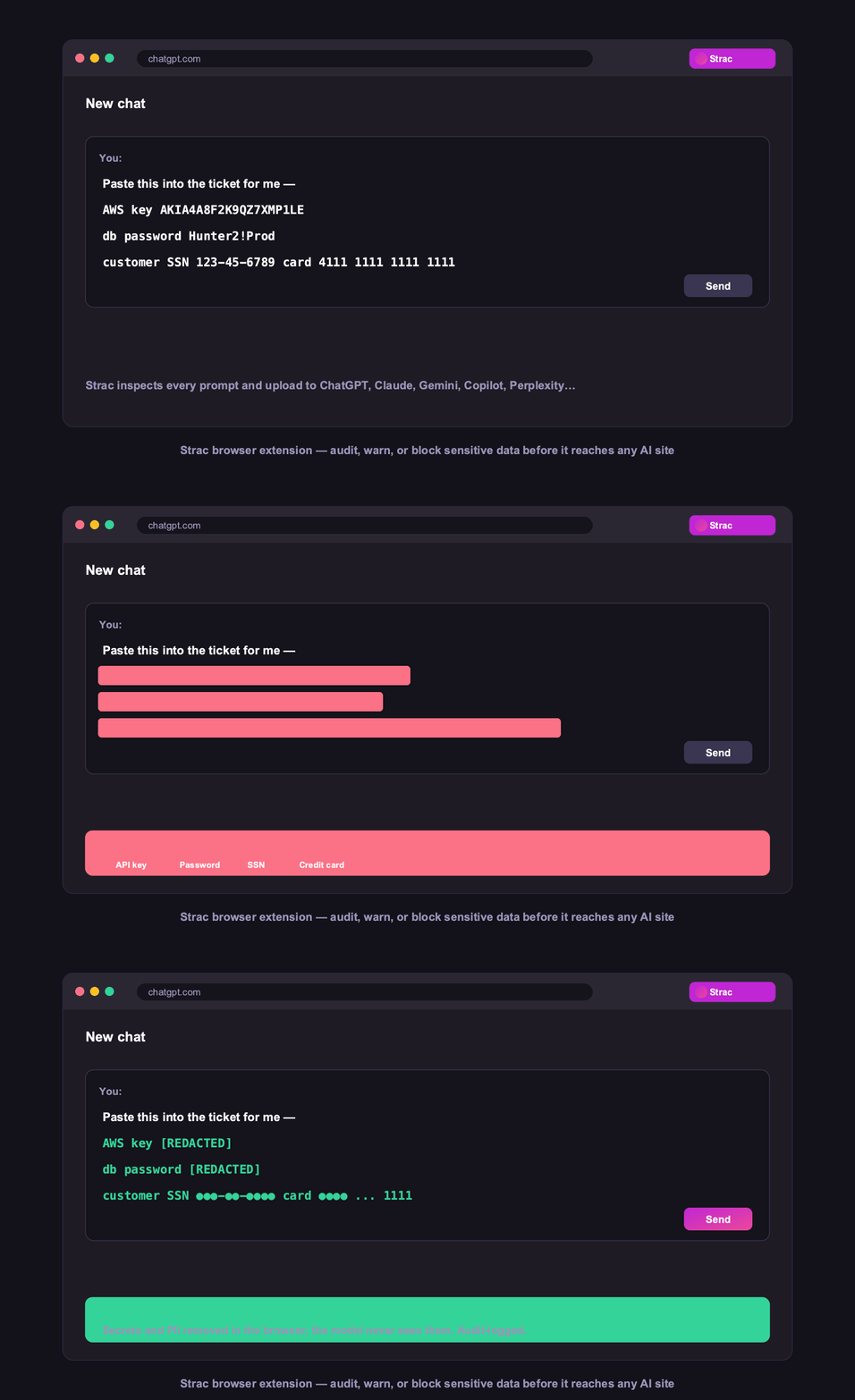
Strac's browser DLP extension for Chrome, Edge, Firefox, and Safari blocks or redacts sensitive uploads, downloads, and pastes to and from Dropbox in real time, including data a user tries to move from Dropbox into an AI tool in another tab.
Browser DLP blocks or redacts sensitive Dropbox data in the browser, live.
5. Control Dropbox data on endpoints (Mac and Windows)
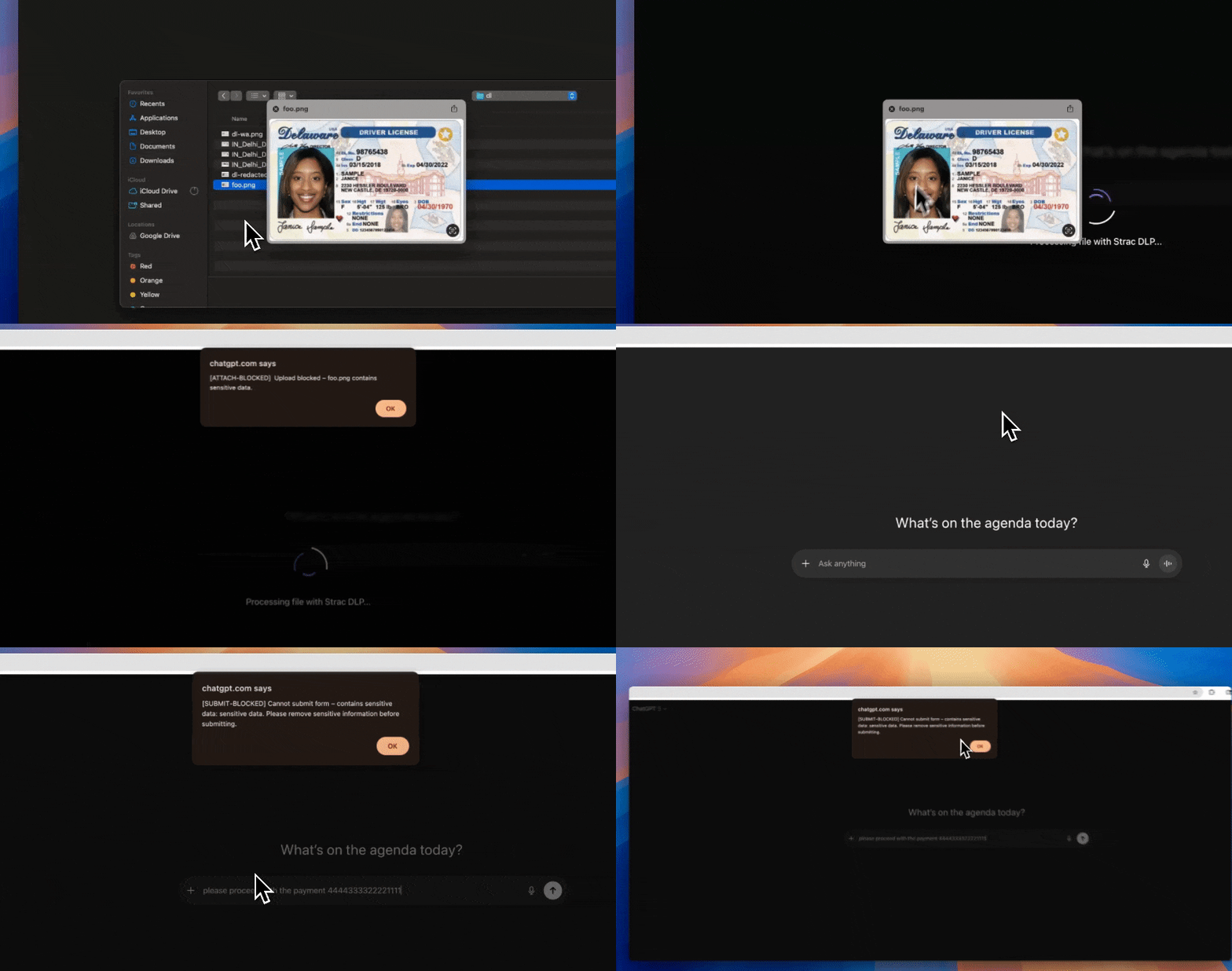
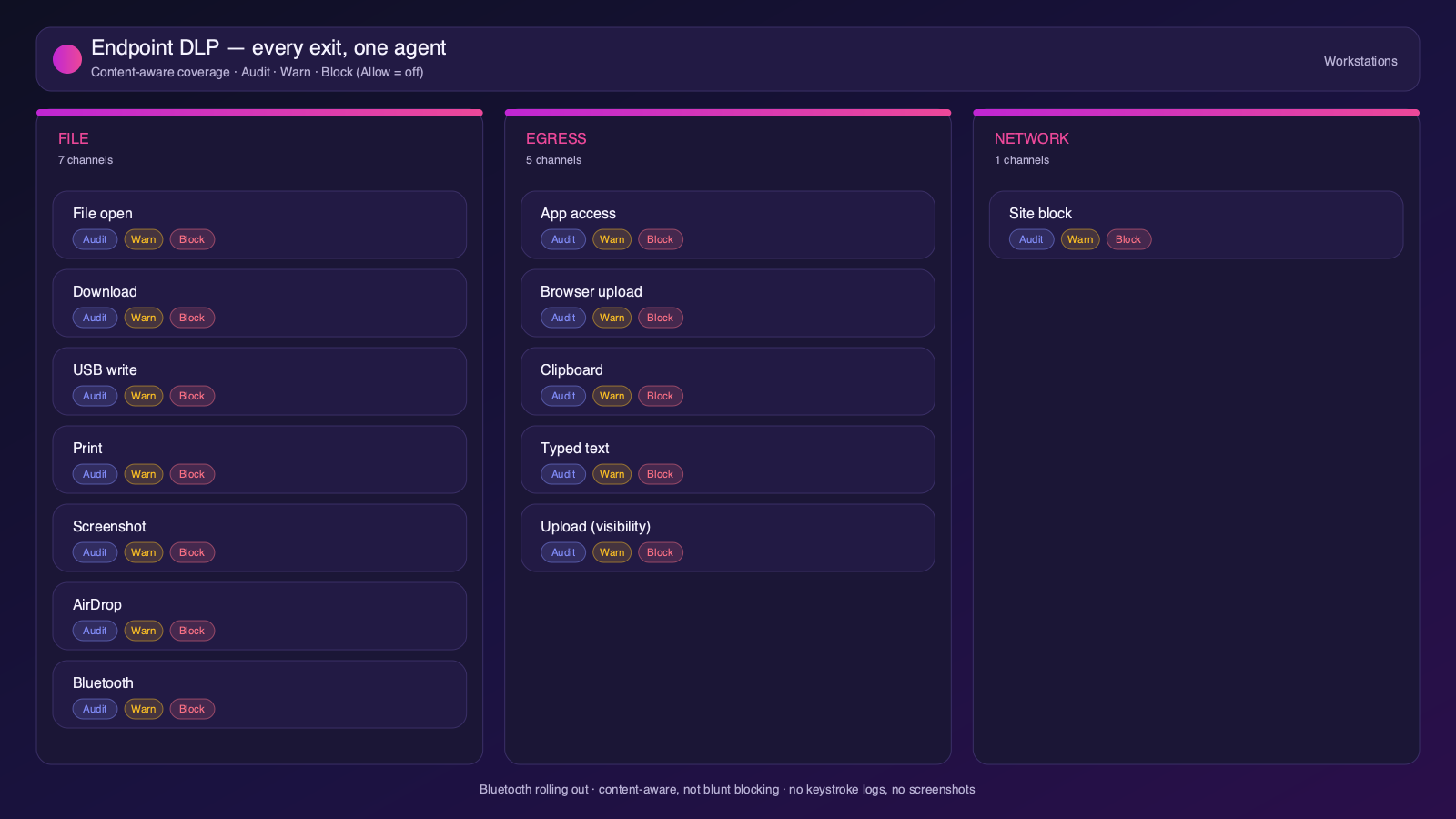
Strac's endpoint DLP agent controls Dropbox data as it lands on laptops, with four modes: block, warn, allow, and audit across file downloads, copies, and screenshots on both Mac and Windows.
Content-aware endpoint DLP: block, warn, allow, or audit on Mac and Windows.
6. One platform, every surface
Dropbox is one of 50+ places Strac protects. The same engine covers SaaS, cloud, GenAI, MCP, browser, and endpoint, so your Dropbox data stays protected everywhere it flows, not just at rest. That breadth, plus remediation that actually fixes exposure, is why teams consolidate on Strac instead of stacking point tools.
50+ integrations across SaaS, cloud, databases, endpoints, browsers, and AI.
🌶️ Frequently asked: Dropbox security
Is Dropbox secure?
Dropbox is secure when configured correctly, but its defaults around sharing and access make oversharing and misconfiguration a leading cause of Dropbox data exposure, and it does not scan the sensitive data inside your content. Hardening the configuration plus adding DSPM and DLP (like Strac) to discover and remediate sensitive data closes the gap.
Is Dropbox secure for sensitive data?
It can be, with restricted shared links, external-sharing controls, SSO/2FA, device controls, and continuous data discovery. The risk is PII, PHI, or PCI in files shared via public links or synced to unmanaged devices. Strac scans Dropbox for sensitive data, flags overshared files, and automatically revokes links, removes external access, or redacts the data.
Does Dropbox have DLP?
Dropbox offers some admin and governance controls, but it does not scan or redact the sensitive data inside files. Strac adds agentless discovery, in-place redaction and masking, automatic remediation of exposed data, and the same protection beyond Dropbox, across browsers, endpoints, and AI agents.
What are the most important Dropbox security best practices?
Enforce least-privilege access and MFA, restrict external and public sharing, review third-party app access, continuously discover and classify sensitive data, monitor activity for risky behavior, and remediate exposure automatically. The sections above cover each in detail.
How does Strac secure Dropbox?
Strac connects to Dropbox agentlessly, runs DSPM discovery across your Dropbox data, and remediates exposure (redact, mask, revoke access, quarantine, label). It extends the same protection to AI agents via MCP DLP, the browser, and Mac and Windows endpoints.