Short answer: Yes, OneDrive for Business is secure by design. Microsoft encrypts files at rest with per-file keys and in transit with TLS, runs the service under certifications like SOC 2, ISO 27001, and HIPAA-eligible BAAs, and gives admins granular controls. The real risk is not the platform, it is how it gets configured and used: oversharing through "Anyone with the link," broad external and guest access, files syncing to unmanaged personal devices, and the fact that OneDrive does not inspect the actual sensitive data inside the files it stores. A tenant left on default settings is far less safe than one hardened with the practices below.
Access and sharing controls
Lock down link-sharing defaults and remove "Anyone with the link"
The single biggest OneDrive exposure is the anonymous "Anyone with the link" option, which creates a URL that works without any sign-in. If that link lands in a forwarded email or a public page, the file is effectively public.
In the SharePoint admin center under Policies and Sharing, set the default link type to Specific people and the default scope to the most restrictive option your business can tolerate.
Disable Anyone links entirely for OneDrive, or if you must keep them, require an expiration date (for example 14 or 30 days) and set permissions to view-only by default.
Turn on password protection and link expiration for any Anyone or guest links you do allow.
Remember that OneDrive sharing settings cannot be more permissive than the tenant-level SharePoint setting, so harden the organization-wide control first.
Restrict external and guest sharing
External sharing is useful, but open-ended guest access spreads corporate files into accounts you do not manage.
Set external sharing to New and existing guests so recipients must verify their identity with a one-time passcode, rather than Anyone.
Use allow and block domain lists to permit sharing only with trusted partner domains and block consumer or competitor domains.
Enable guest access reviews and set guest links to expire so dormant external access does not linger for months.
Limit who can share externally to specific security groups rather than every user in the tenant.
Enforce least privilege, MFA, and Conditional Access
Accounts are the front door to OneDrive, so identity hardening matters as much as sharing settings.
Require multi-factor authentication for all users through a Conditional Access policy, not just for admins.
Build Conditional Access rules that block or limit access from unmanaged devices, risky sign-ins, or unexpected locations, and require compliant or hybrid-joined devices for full download access.
Grant edit and owner rights only where needed and prefer view-only; review inherited permissions so a shared folder does not silently expose more than intended.
Protect privileged roles with Privileged Identity Management and just-in-time elevation so standing admin access is minimized.
Data protection and compliance
Apply sensitivity labels and encryption
Native platform encryption protects data at rest on Microsoft servers, but it does not travel with a file once it is downloaded or shared. Sensitivity labels from Microsoft Purview add persistent protection.
Define a label taxonomy such as Public, Internal, Confidential, and Highly Confidential, and attach encryption and usage rights to the sensitive tiers.
Use auto-labeling policies so files containing patterns like credit card numbers or health identifiers are labeled without relying on end users.
Labels enforce rights (such as do-not-forward or view-only) that stay with the file even after it leaves OneDrive, which plain link permissions cannot do.
Discover and classify the sensitive data inside files
This is the gap most teams miss. OneDrive controls who can open a file, but the service does not natively tell you what sensitive data lives inside the millions of documents, spreadsheets, and images across your tenant. Overshared files that contain PII, PHI, or PCI data are the ones that turn a misconfiguration into a breach.
Run content scanning and classification across OneDrive to find files containing SSNs, bank and card numbers, passport and driver's license data, and health records, including text inside PDFs and images via OCR.
Map where regulated data concentrates so you can prioritize remediation instead of treating every file equally.
Native keyword and sensitive-information-type matching in Purview helps, but accuracy and remediation depth are limited, so many teams layer a dedicated data discovery and DLP tool on top to classify and act on the actual file contents.
Deploy DLP and understand the gaps
Data Loss Prevention policies stop sensitive data from leaving through sharing and sync.
Create Microsoft Purview DLP policies scoped to OneDrive that detect sensitive information types and block or warn on external sharing of matching files.
Be realistic about limits: native DLP leans on predefined sensitive-information types, can be noisy with false positives, often requires higher-tier E5 licensing, and does not automatically redact or mask the sensitive values inside a document.
Pair detection with remediation: quarantine, revoke links, or redact and mask the sensitive content so a flagged file is actually made safe rather than just reported.
Set retention and meet compliance obligations
Configure retention policies and labels so files are kept or deleted according to regulatory requirements rather than indefinitely accumulating risk.
Confirm a Business Associate Agreement is in place if you store PHI, and map your configuration to the frameworks you report against such as SOC 2, ISO 27001, HIPAA, or PCI DSS.
Set OneDrive retention for departed employees so a leaver's files are preserved for a defined window and then cleaned up.
Monitoring and device security
Control sync and Known Folder Move to unmanaged devices
The OneDrive sync client can pull corporate files onto personal laptops that your security team does not control.
Use the "Allow syncing only on computers joined to specific domains" setting to block sync on unmanaged machines.
Combine this with Conditional Access app-enforced restrictions so unmanaged devices get browser-only, download-blocked access.
Deploy Known Folder Move through policy so Desktop, Documents, and Pictures back up to OneDrive, but pair it with the sync restrictions above so those folders do not replicate onto personal devices.
Block sync of specific file types where appropriate and require disk encryption on managed endpoints.
Find public and overshared files continuously
Run regular reviews to surface files shared with Anyone links, external guests, or the entire organization, and revoke access that is no longer needed.
Treat oversharing discovery as an ongoing process, not a one-time cleanup, because new links are created every day.
Prioritize remediation of overshared files that also contain regulated data, since those carry the highest breach impact.
Monitor activity and audit logs
Enable unified audit logging and review OneDrive events such as mass downloads, anonymous link creation, and sharing with external users.
Feed logs into a SIEM and configure alerts for anomalous behavior like large exfiltration or access from new locations.
Use alert policies in the compliance portal to flag risky sharing in near real time rather than discovering it after an incident.
OneDrive security checklist
Set default sharing to Specific people and disable or expire Anyone-with-the-link access.
Restrict external sharing to verified guests and trusted domains only.
Enforce MFA and Conditional Access for every user, with tighter rules for unmanaged devices.
Apply least-privilege permissions and prefer view-only over edit and owner rights.
Limit OneDrive sync and Known Folder Move to domain-joined, managed, encrypted devices.
Deploy sensitivity labels and DLP, and discover PII, PHI, and PCI data inside files, not just around them.
Continuously find and remediate public or overshared files, prioritizing those with regulated data.
Turn on audit logging, alerting, and retention, and map the configuration to your compliance frameworks.
✨ How Strac secures OneDrive across every surface
OneDrive security best practices close the configuration gaps. Strac closes the data gap: it discovers the sensitive data inside OneDrive, remediates exposure automatically, and extends the same protection to every other place that data flows, AI agents, browsers, and endpoints. One agentless platform across SaaS, cloud, GenAI, MCP, browser, and endpoint.
One platform protecting OneDrive data everywhere it lives and moves.
1. Discover and classify sensitive data in OneDrive (DSPM)
Strac's DSPM continuously scans OneDrive for PII, PHI, PCI, and secrets using ML and OCR across 100+ data types, so you know exactly where your regulated data lives and which items are overshared, public, or out of policy. This is the layer native OneDrive controls skip: they can enforce a setting, but they cannot tell you where all your sensitive data actually sits.
Strac discovers and classifies every sensitive file in OneDrive, automatically.
2. Redact and remediate exposure automatically (SaaS DLP)
Finding exposed data is table stakes. Strac's OneDrive DLP acts on it, under your policy: redact or mask sensitive values in place, revoke public "anyone with the link" sharing, remove external members from files and sites, quarantine or delete items that should not exist, and label and classify, with a full audit trail mapped to HIPAA, PCI DSS, SOC 2, ISO 27001, and GDPR. Most alternatives stop at an alert; Strac fixes the exposure.
Strac remediates OneDrive exposure in place, revoke public links, remove external members, redact, quarantine.
3. Govern what AI agents pull from OneDrive (MCP DLP)
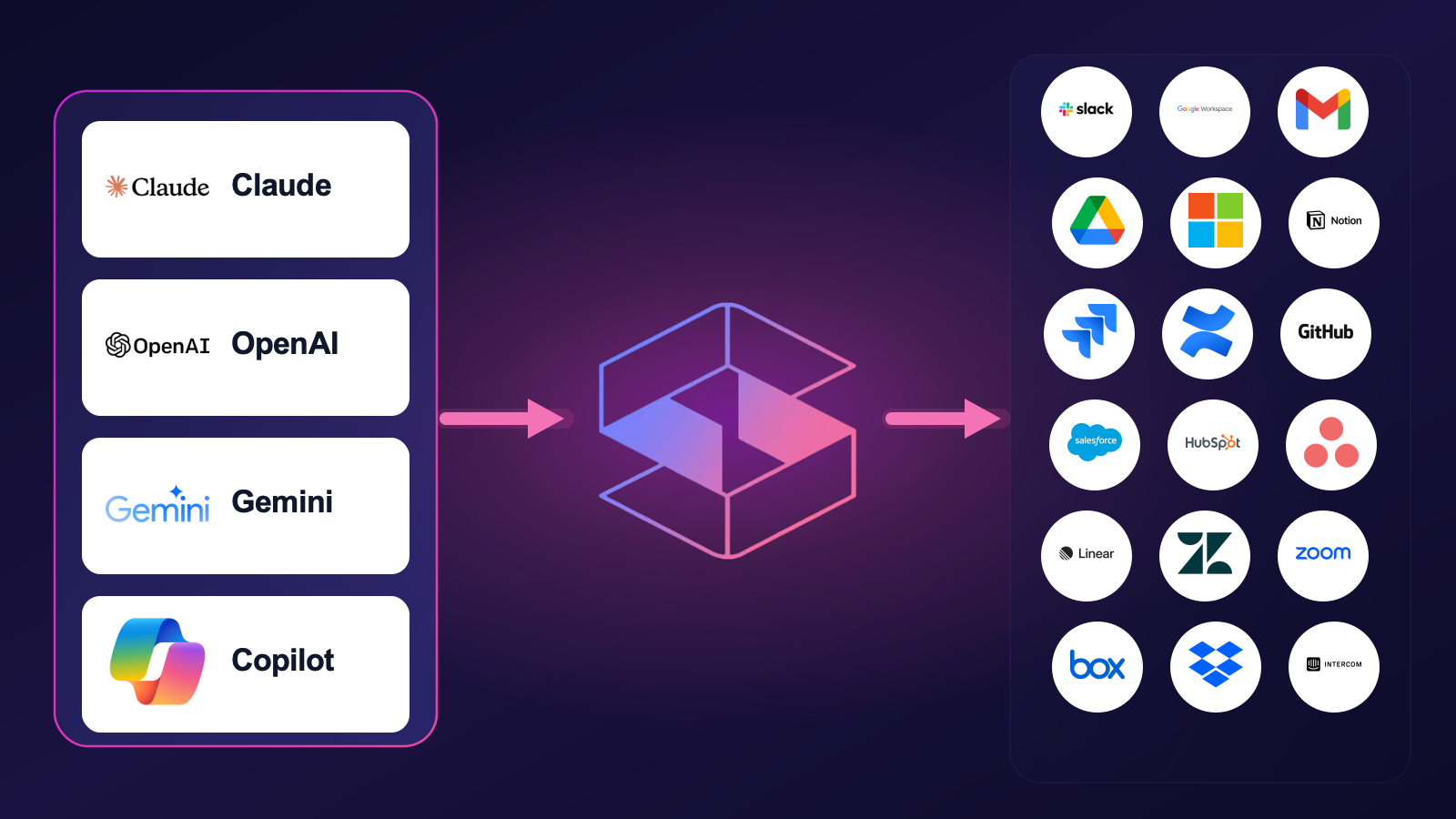
AI agents now read directly from OneDrive over the Model Context Protocol. Strac's MCP DLP sits in that path as a reverse proxy and redacts sensitive values in tool responses before the model ever sees them, and governs exactly which agents can reach which OneDrive data. Connect the Microsoft 365 MCP connector once and every agent tool call is inspected.
Strac governs the MCP boundary so AI agents can use OneDrive without exfiltrating sensitive data.
4. Stop OneDrive data leaks in the browser
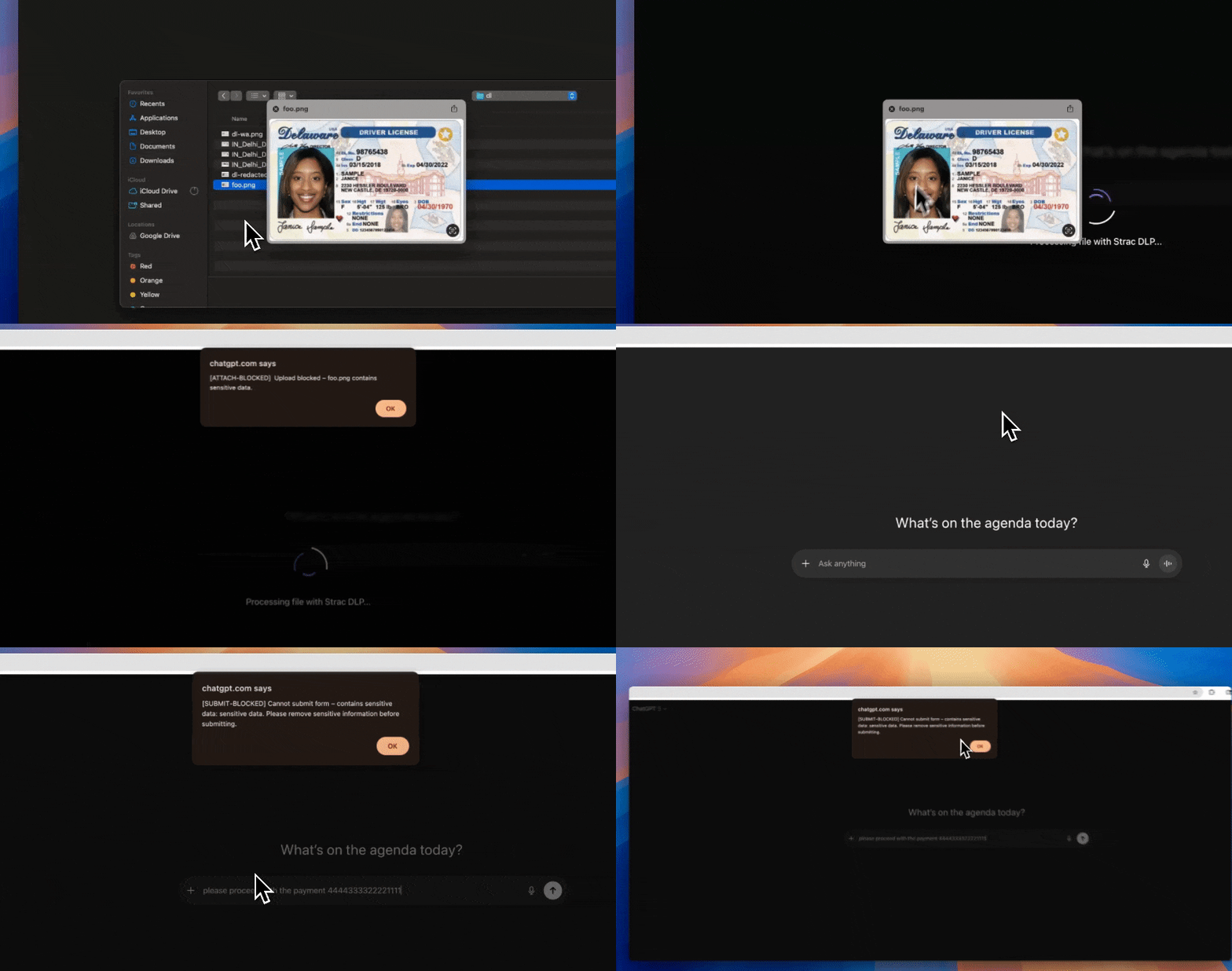
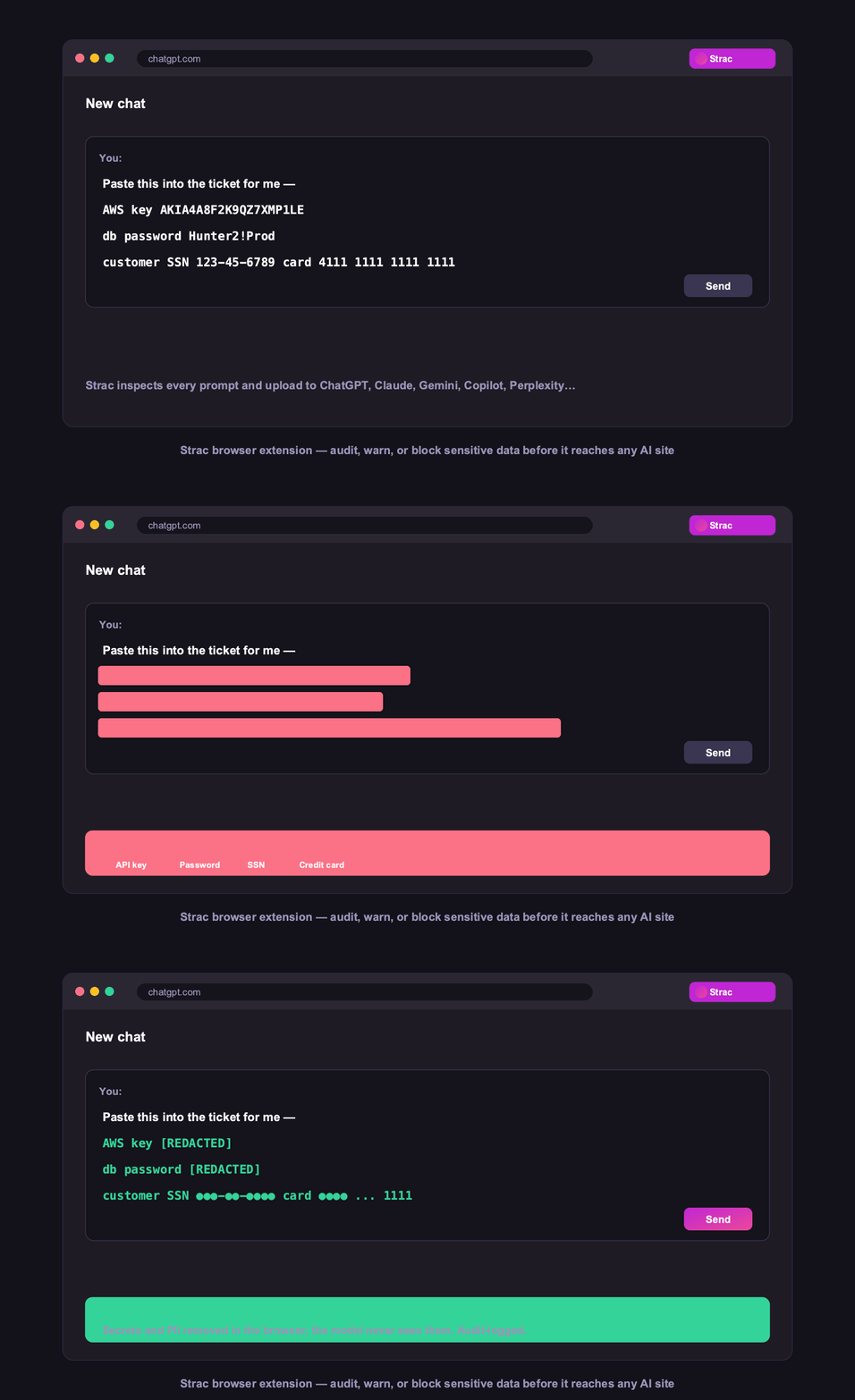
Strac's browser DLP extension for Chrome, Edge, Firefox, and Safari blocks or redacts sensitive uploads, downloads, and pastes to and from OneDrive in real time, including data a user tries to move from OneDrive into an AI tool in another tab.
Browser DLP blocks or redacts sensitive OneDrive data in the browser, live.
5. Control OneDrive data on endpoints (Mac and Windows)
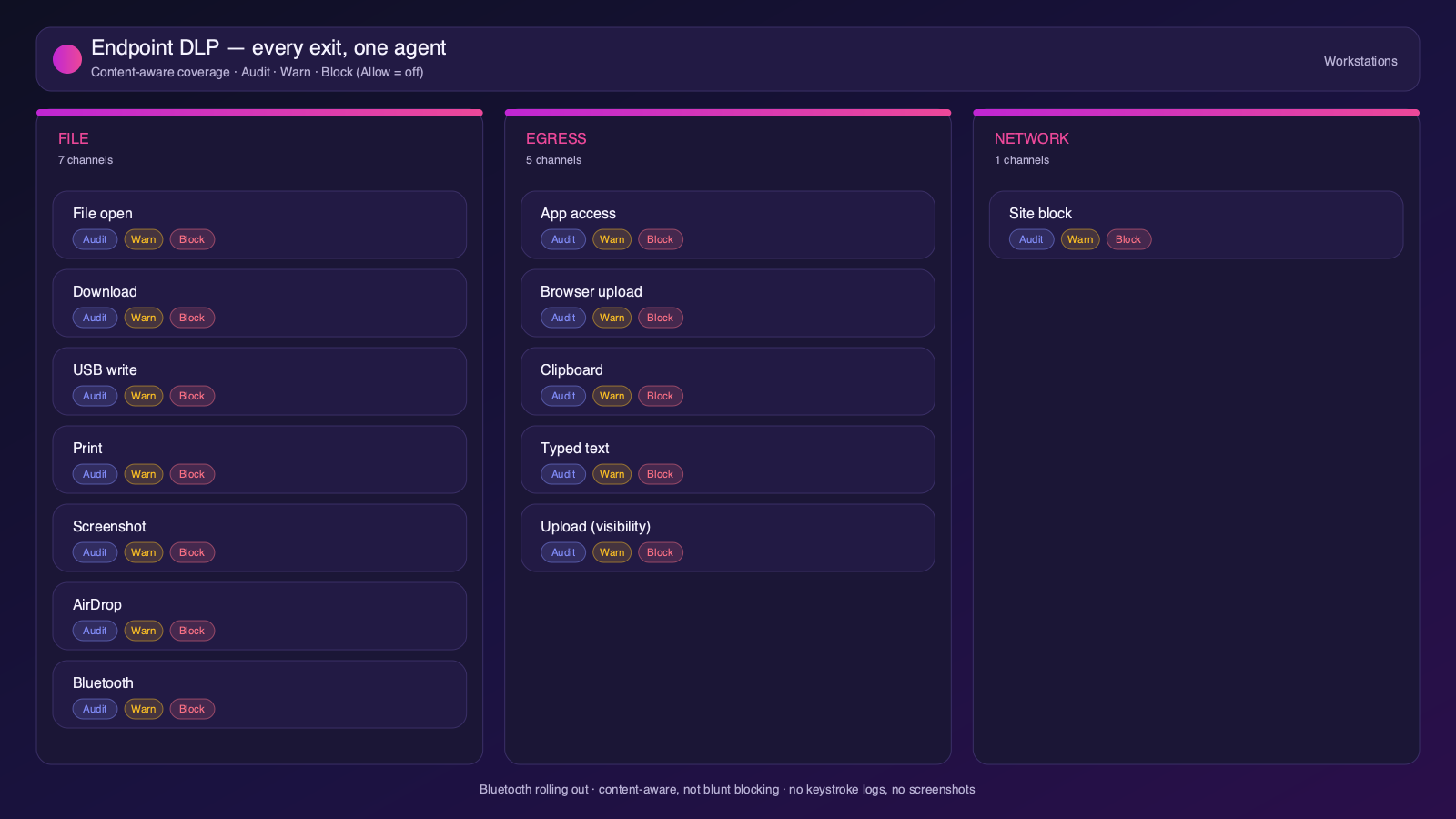
Strac's endpoint DLP agent controls OneDrive data as it lands on laptops, with four modes: block, warn, allow, and audit across file downloads, copies, and screenshots on both Mac and Windows.
Content-aware endpoint DLP: block, warn, allow, or audit on Mac and Windows.
6. One platform, every surface
OneDrive is one of 50+ places Strac protects. The same engine covers SaaS, cloud, GenAI, MCP, browser, and endpoint, so your OneDrive data stays protected everywhere it flows, not just at rest. That breadth, plus remediation that actually fixes exposure, is why teams consolidate on Strac instead of stacking point tools.
50+ integrations across SaaS, cloud, databases, endpoints, browsers, and AI.
🌶️ Frequently asked: OneDrive security
Is OneDrive secure?
OneDrive is secure when configured correctly, but its defaults around sharing and access make oversharing and misconfiguration a leading cause of OneDrive data exposure, and it does not scan the sensitive data inside your content. Hardening the configuration plus adding DSPM and DLP (like Strac) to discover and remediate sensitive data closes the gap.
Is OneDrive secure for sensitive data?
It can be, with restricted link sharing, guest controls, Conditional Access, sync restrictions, and continuous data discovery. The risk is PII, PHI, or PCI in files that are public or synced to unmanaged devices. Strac continuously scans OneDrive for sensitive data, flags overshared files, and automatically revokes public links, removes external access, or redacts the data.
Does OneDrive have DLP?
Microsoft Purview offers DLP for OneDrive, but it often requires higher-tier licensing, can be noisy, and does not redact or remediate the values inside files. Strac adds agentless discovery, in-place redaction and masking, automatic remediation of public links and external access, and the same protection beyond OneDrive, across browsers, endpoints, and AI agents.
What are the most important OneDrive security best practices?
Enforce least-privilege access and MFA, restrict external and public sharing, review third-party app access, continuously discover and classify sensitive data, monitor activity for risky behavior, and remediate exposure automatically. The sections above cover each in detail.
How does Strac secure OneDrive?
Strac connects to OneDrive agentlessly, runs DSPM discovery across your OneDrive data, and remediates exposure (redact, mask, revoke public access, remove external access, quarantine, label). It extends the same protection to AI agents via MCP DLP, the browser, and Mac and Windows endpoints.